


Installing Modded OS
How to buy and install a Modded OS edition with the Andronix app 10 - pick an edition, buy it on Google Play, run one command in Termux, and open the desktop.
This guide covers installing a Modded OS edition with the Andronix app 10 (Andronix 2.0): the five Modded 2.0 editions, and the Classic editions for people who bought them before. It takes a few taps in the app and one command in Termux.
Before you start
- Sign in to the Andronix app. Your purchases are linked to your account.
- A 64-bit phone: Modded OS isn't available on 32-bit phones; the app tells you if yours is one.
- Termux from F-Droid, GitHub or Google Play. See Install Termux.
- One install per distro: a Modded edition is installed into the folder of the distro it's built on, so it can't sit next to the free distro of the same base, or another edition built on it. For example, Modded 2.0 Ubuntu KDE replaces the free Ubuntu. If one is already there, the install stops and tells you; to replace it, add
--reinstallto the command. It asks before deleting anything, so back up what you want to keep first. - Download limits: each account can download a Modded OS a set number of times per day and per month. Most people never reach the limit, and Premium raises it. If you need more for a good reason, contact us.
1. Pick an edition
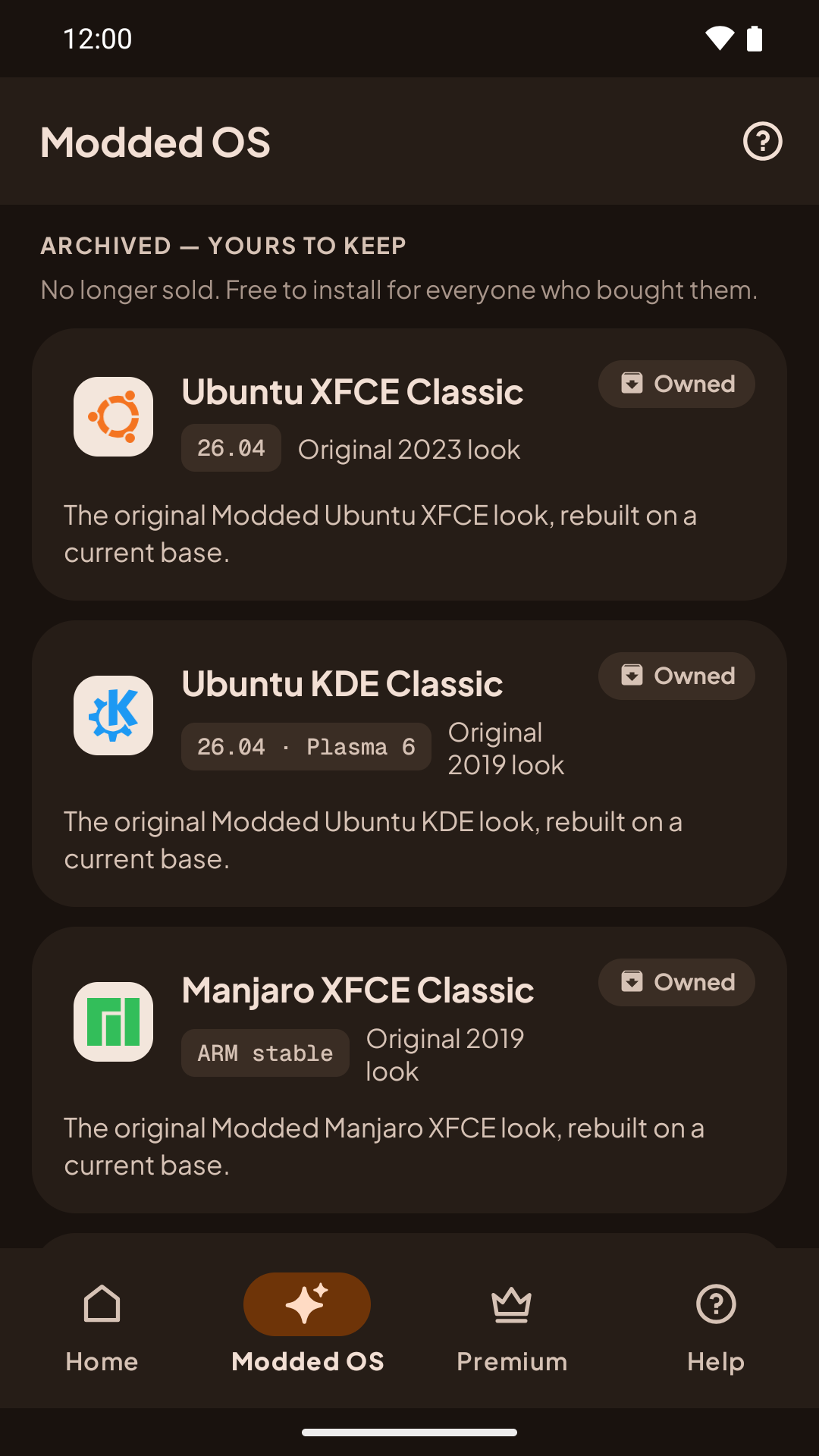
Open the Modded OS tab. It lists the Modded 2.0 editions, the Modded Pass and Andronix Complete. If you bought a Modded OS before Andronix 2.0, your Classic editions are listed further down, under Archived — yours to keep.
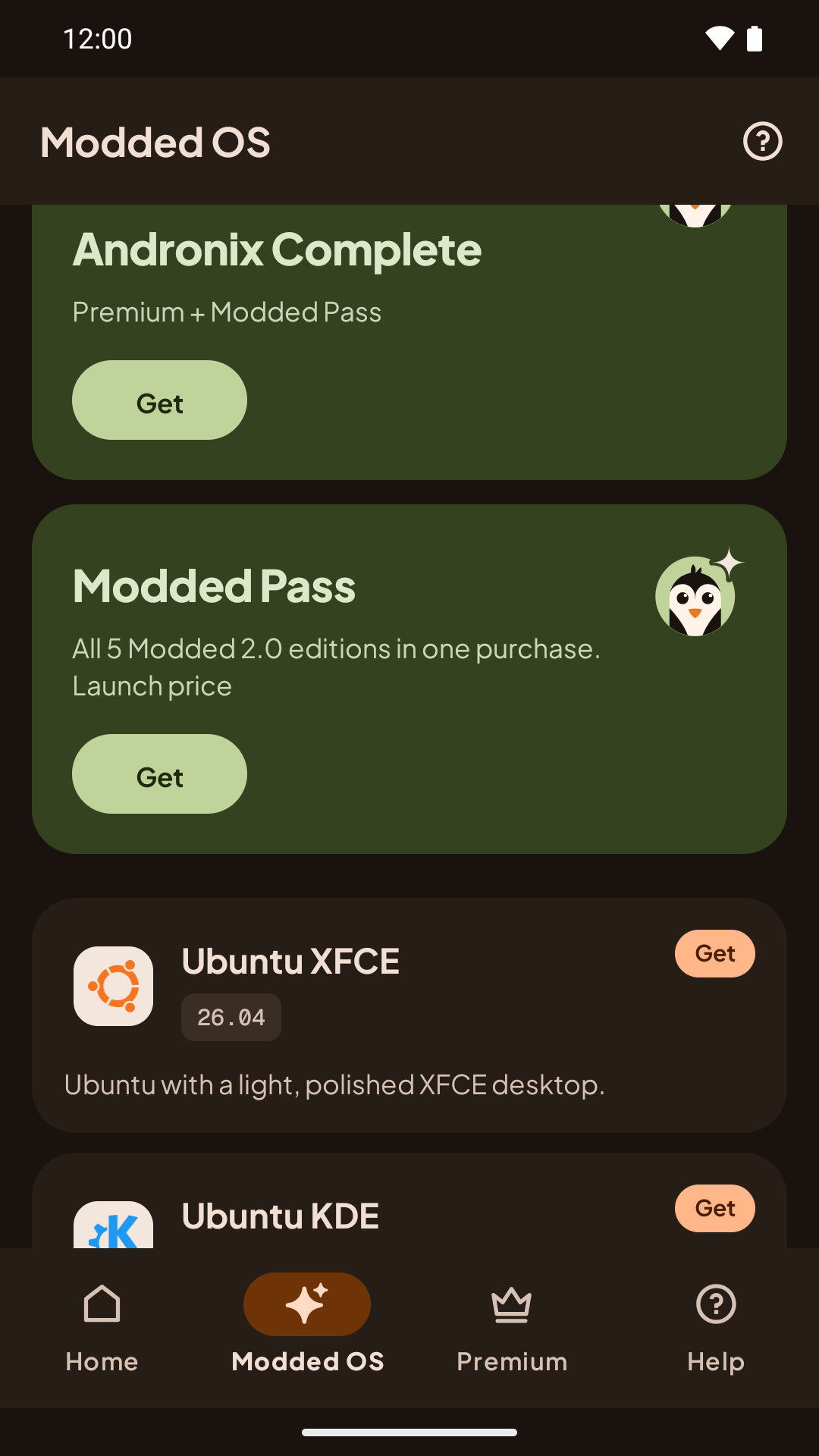
2. Buy it (if you don't own it yet)
Tap an edition you don't own, or the Modded Pass or Andronix Complete offer. The Google Play purchase sheet opens; pay there as you would for any app. When the purchase is done, the edition shows as Owned.
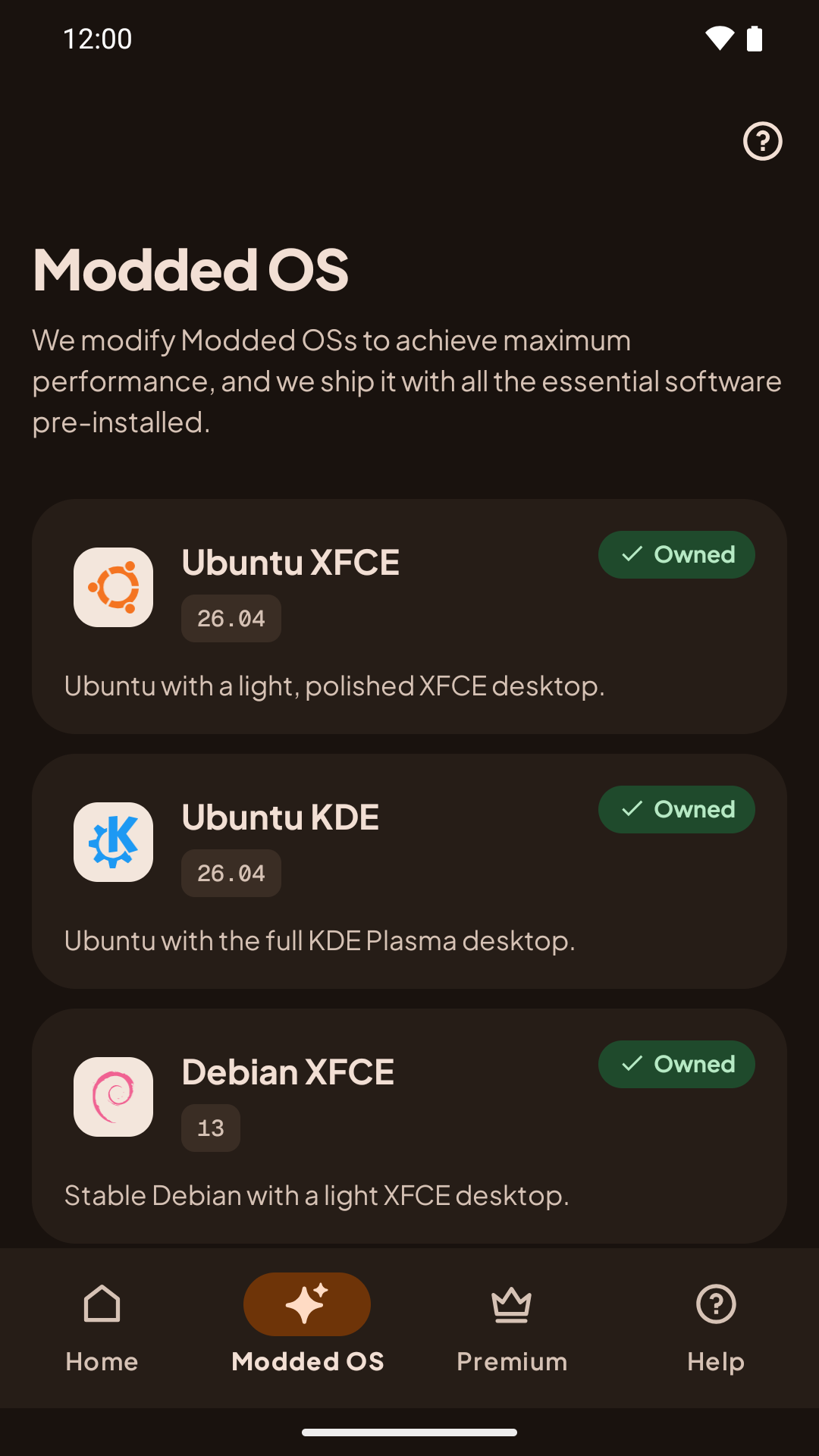
Already own it? Skip to the next step.
3. Install it
Tap your edition
Tap an edition marked Owned. The app goes straight to the Termux step and copies the install command for you. The command includes a download token, so the app hides it on screen; tap Show full command to see it with the token masked.
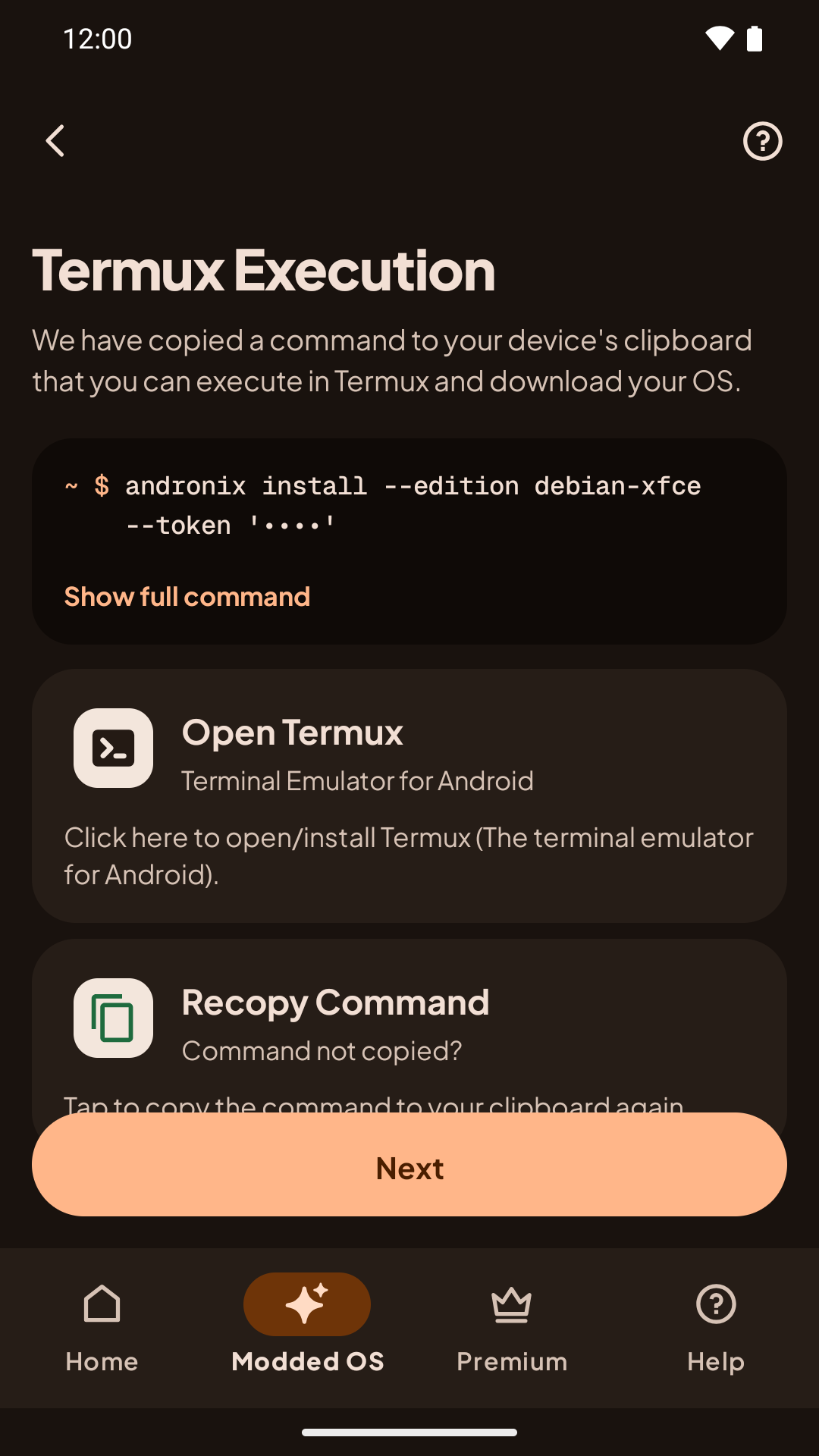
Run it in Termux
Tap Copy and open Termux. The app copies the command again (in case you copied something else in the meantime) and opens Termux. Long-press, tap Paste, and press Enter.
If you come back to the app and the install still hasn't started after 30 seconds, the app shows Nothing happened? Paste the whole command in Termux; typing install on its own won't work.
The installer shows its steps and ticks each one off. The first run also updates Termux and can take a few minutes, so keep Termux open.
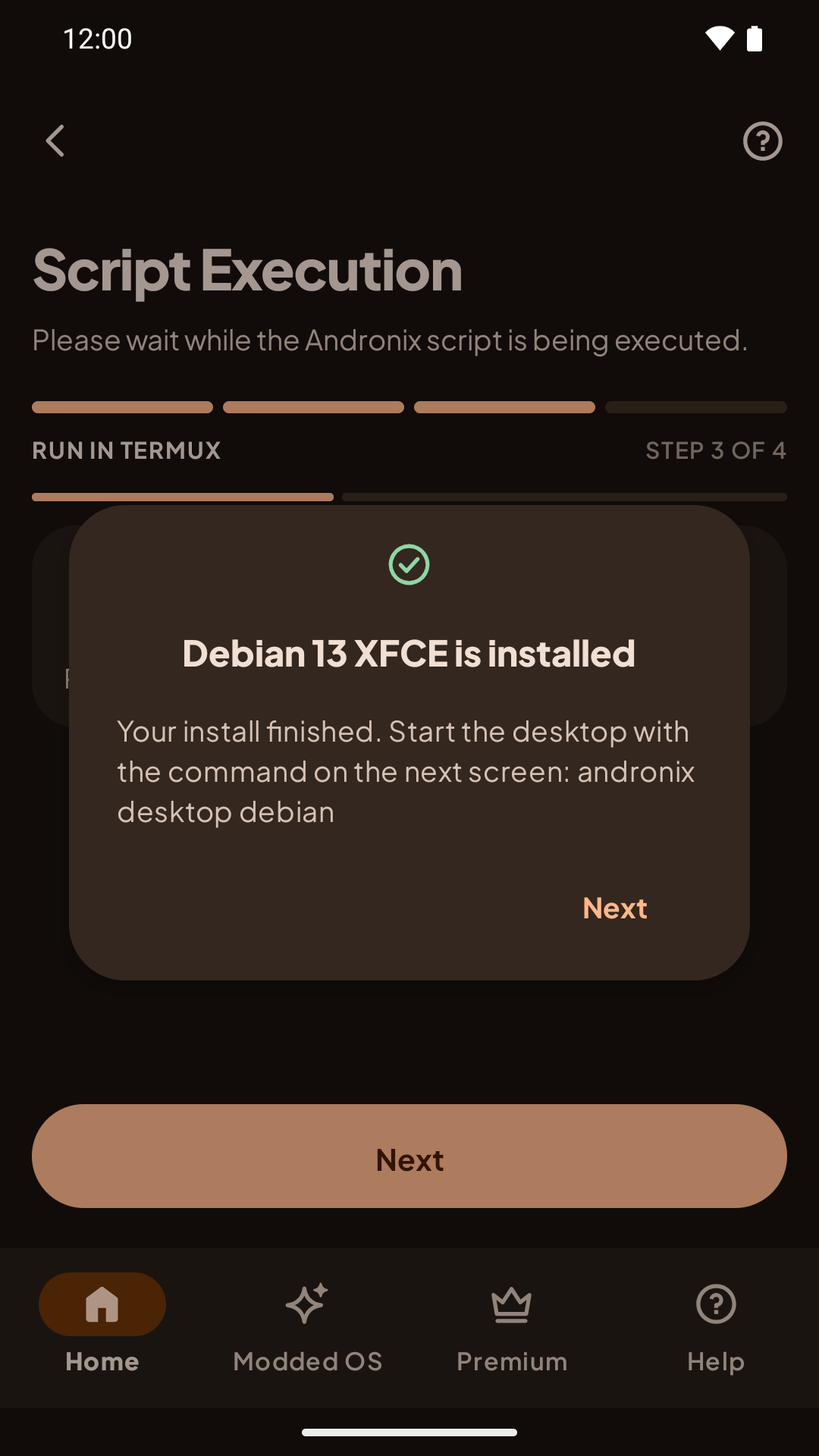
Create your user
When the install finishes, Termux asks you to create your user: a username, a password, and a desktop password, the same as for a free distro (see Create your user).
4. Start the desktop
The app moves on to Start the desktop. Open your Modded desktop full screen with Termux:X11, using the distro your edition is built on, for example:
andronix desktop debian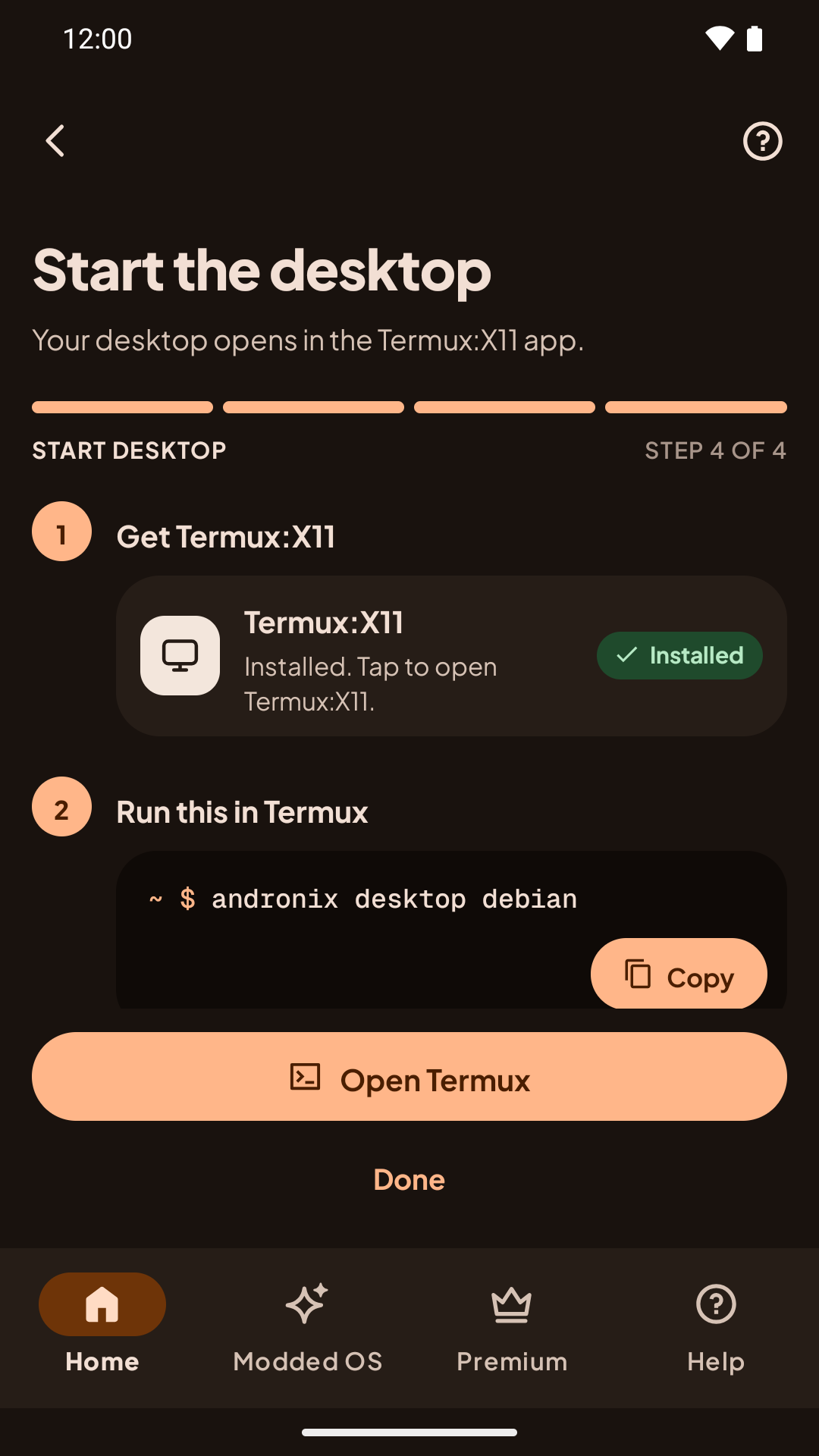
See Start the desktop for getting the Termux:X11 app and everything else.
Classic editions
The Classic editions (the original Modded Ubuntu XFCE, Ubuntu KDE, Debian and Manjaro) install the same way: tap the edition under Archived — yours to keep (it shows Owned), then follow steps 3 and 4. They're free for everyone who bought them before, and aren't sold anymore.
Older video (Andronix 7)
This walkthrough shows the Andronix 7 app and the Classic setup screens from before Andronix 2.0.
Remove a Modded OS
installer 2.0.1+Each edition has an id, and andronix remove takes it. Stop the desktop and exit the distro, then run in Termux, for example:
andronix remove ubuntu-kde| Modded 2.0 | Classic |
|---|---|
ubuntu-xfce, ubuntu-kde, debian-xfce, kali-xfce, manjaro-xfce | legacy-ubuntu-xfce, legacy-ubuntu-kde, legacy-debian, legacy-manjaro |
It deletes only that exact edition, never the free distro or another edition. If a different one is installed, it says which and deletes nothing. It shows what it will delete and asks first; add --yes to skip the question. Files in /sdcard are not touched.
For a Classic edition, --legacy also deletes the copy the old Andronix app (8.x and earlier) installed, such as ~/androkde-fs, ~/androkde-binds and ~/start-androkde.sh:
andronix remove legacy-ubuntu-kde --legacyandronix remove legacy-ubuntu-kde --legacystart, desktop, update, backup and doctor accept the edition id too, for example andronix desktop ubuntu-kde. See the andronix command for the full list.
Upgrading from an Older Modded OS
Upgrade an old Modded OS from the Andronix 8.x app to Modded 2.0: check which one you have, back up your files, uninstall the old version, install the new one and bring your files back.
The Install Fails or Stops
Fix an Andronix install that fails or stops - signal 9, storage space, downloads, unsupported phones, passwords - and where to find the logs.