
Android 12 and Newer
Fix the "Process completed (signal 9) - press Enter" error in Termux caused by Android's phantom process killer on Android 12 and newer.
Docs for Andronix app 8.x (Classic)
This page explains the phantom process killer introduced in Android 12, why it breaks Termux and Andronix, and how to turn it off on your device.
The Problem
Android 12 added a mechanism that monitors forked child processes started by apps and kills them if more than the default 32 are running. In simpler words, Android now monitors the number of child processes spawned by an app, and if that number exceeds the permitted limit, it kills them.
This has led to a lot of power-user apps like Termux, Tasker, Andronix and Debian NoRoot breaking on Android 12 and 12L devices. There is nothing we can do about this on our side, since the change is part of Android's code.
More Information
Issue on Termux's repository: Android 12 Phantom Processes Killed (Process completed (signal 9) - press Enter)
The good news is that Google has included a toggle to turn off the phantom process killer in Android 12L and 13, but OEMs like Xiaomi, Samsung, etc. have not bothered to merge this change into their Android skins.
More information on the proposed solution
Solutions
Follow the instructions below for your Android version. If you are on stock Android, start with the first fix. If you use a skinned ROM like OneUI or MIUI, jump to the second one.
Fix for Stock Android 12L and beyond
This fix might not work on your device, as OEMs can choose to leave out changes Google pushes to the Android Open Source Project. If you are using a skinned Android ROM like Samsung's OneUI, Xiaomi's MIUI, Oppo's ColorOS, etc., try the next fix instead.
Video Tutorial for Stock Android 12L+
Follow the steps below to turn off the phantom process killer:
Enable Developer Options
First, enable Developer Options in your settings. To do this, go to Settings > About Phone and find the Build Number.
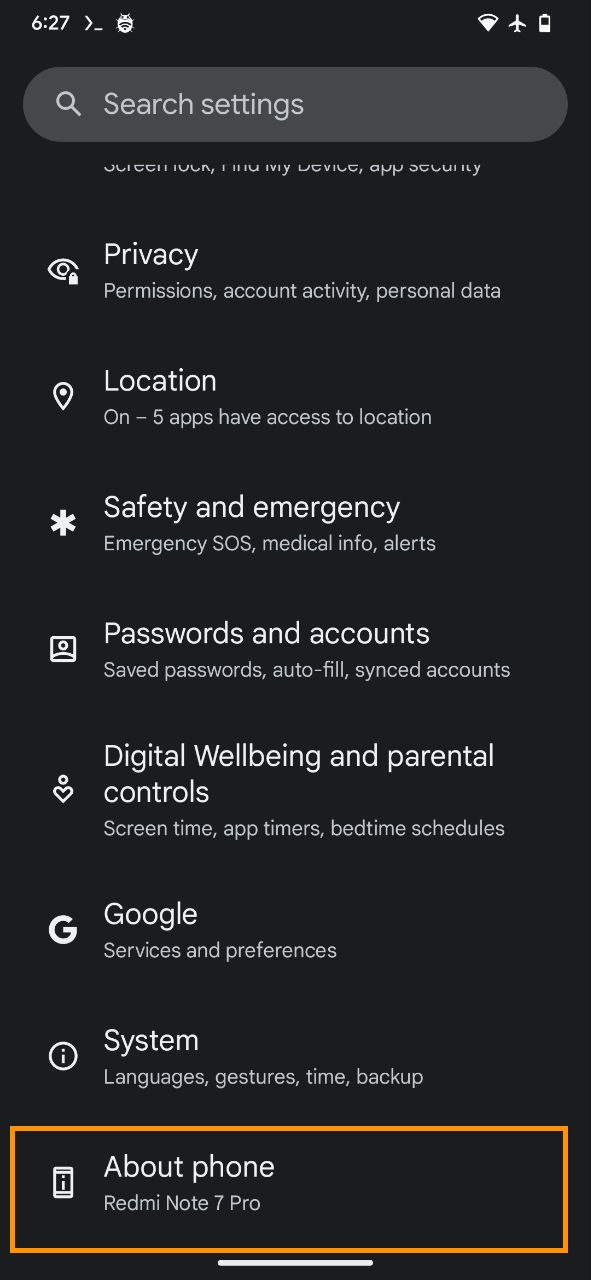
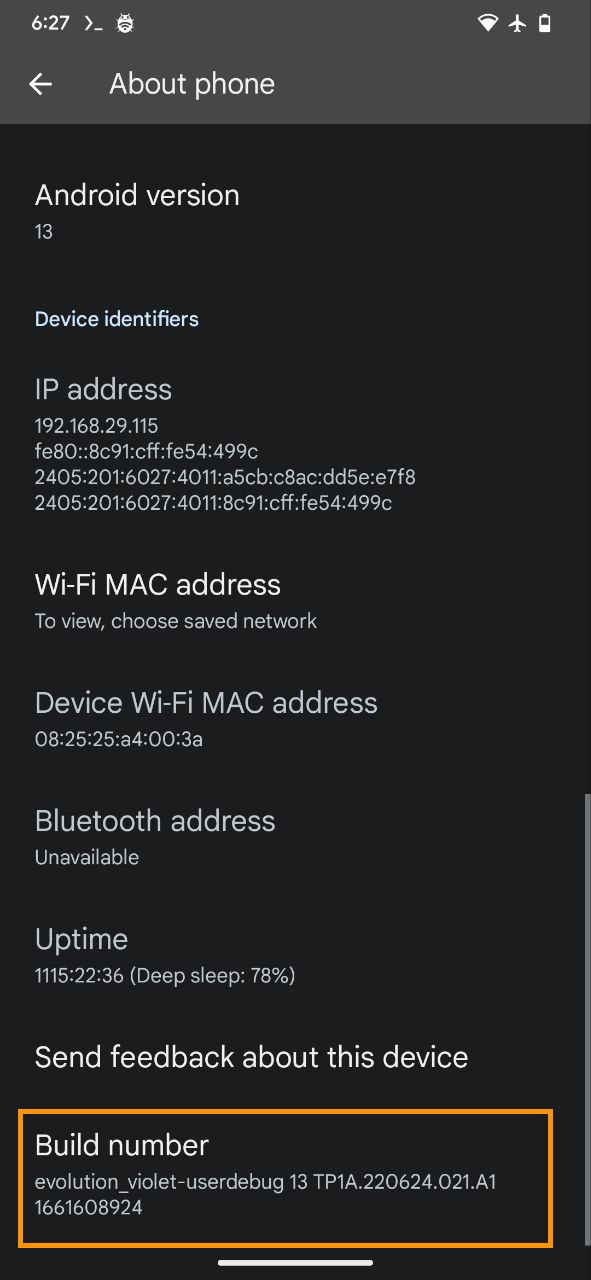
You're a developer now!
Tap the build number repeatedly until you see a toast notification along the lines of You are now x steps away from being a developer.
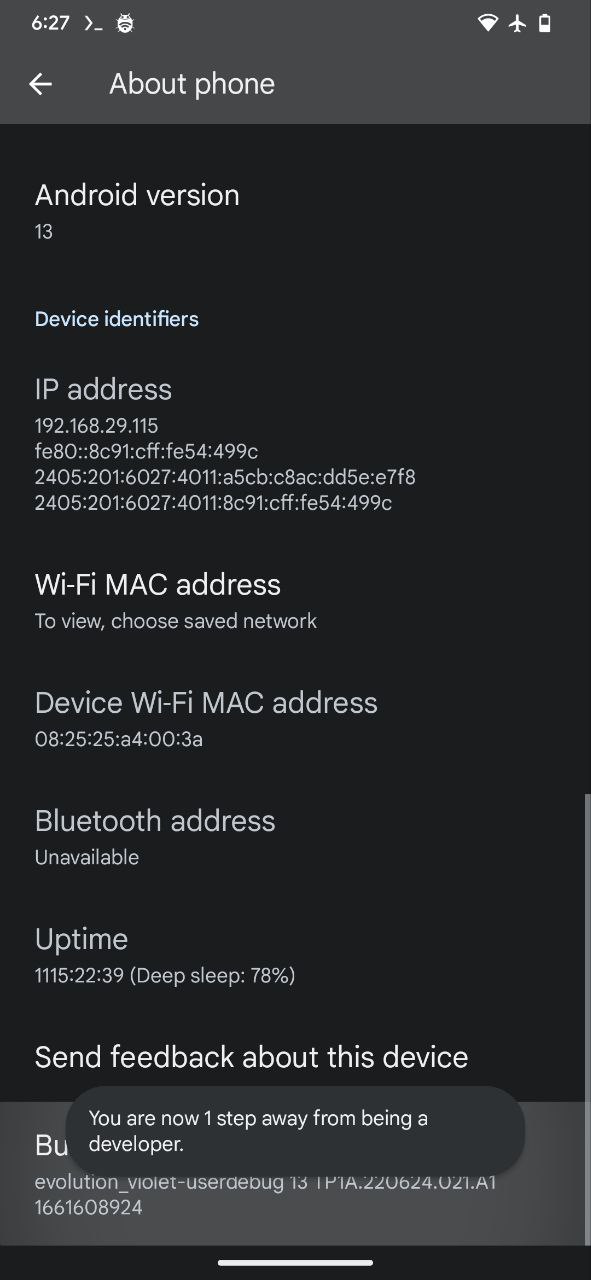
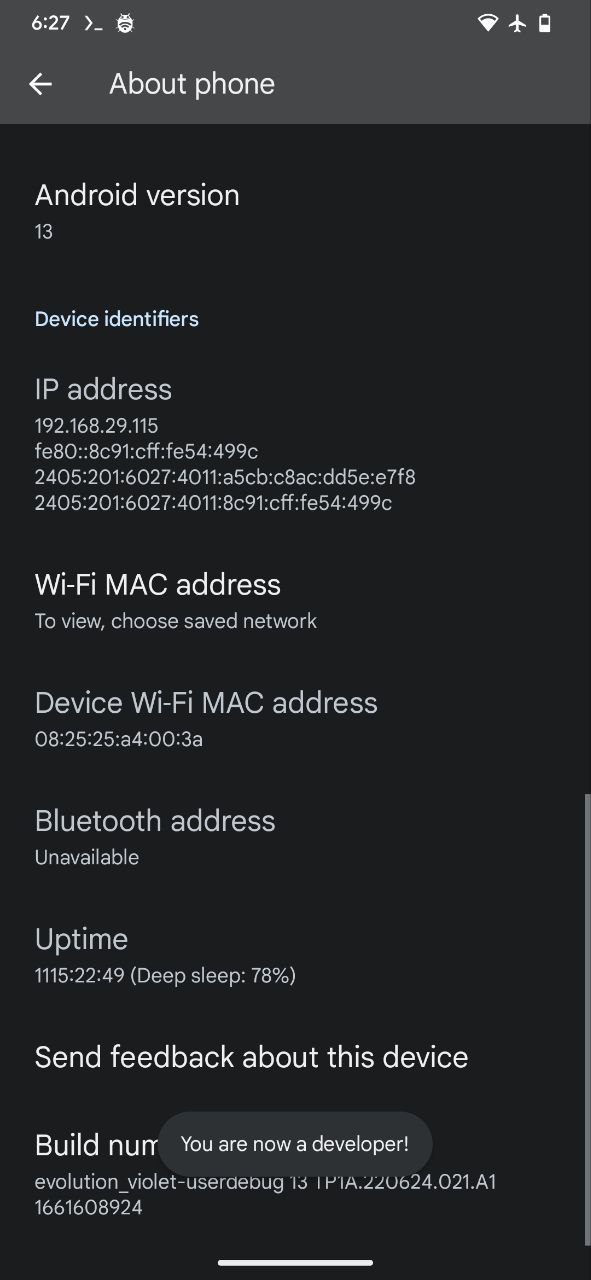
Turn On Developer Options
Now, go to Settings > System > Developer Options and turn on Developer Options on the next screen.
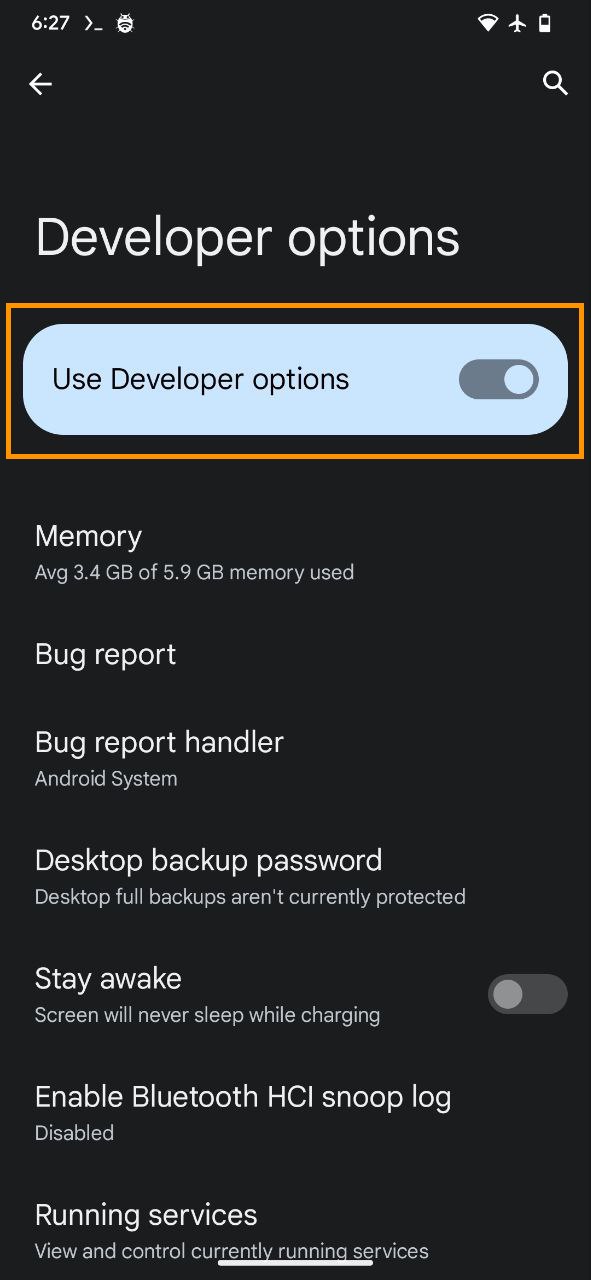
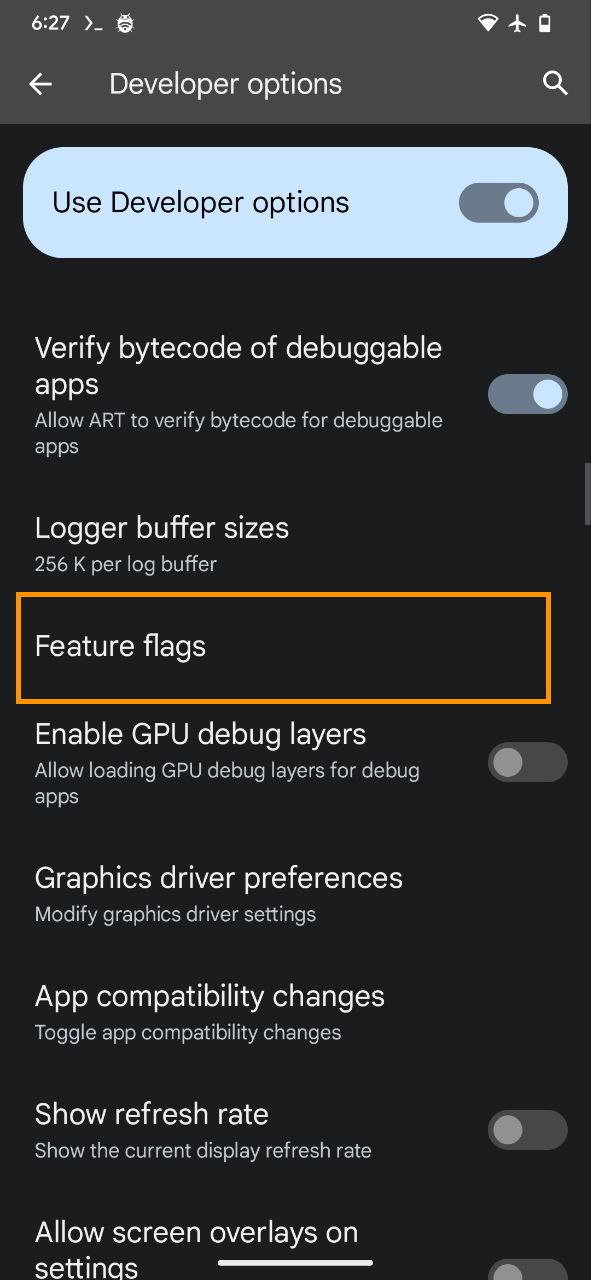
Turn off the Phantom Process Killer
Find the settings_enable_monitor_phantom_procs switch and turn it off.
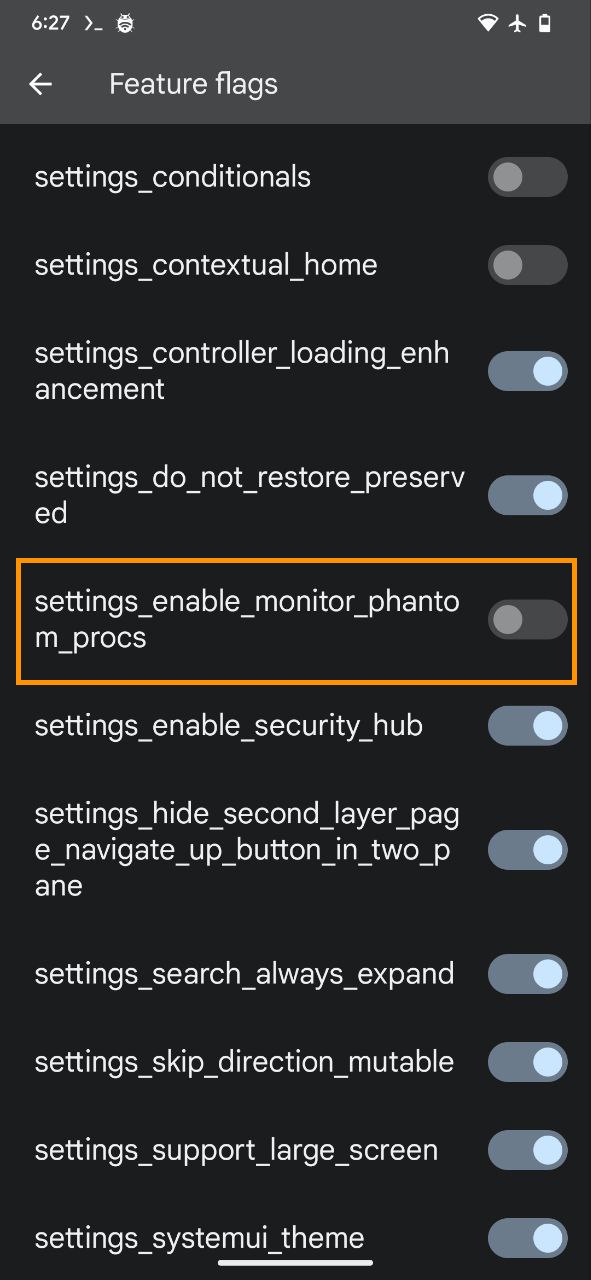
All done!
You are now all set! ✅
Fix for OneUI, MIUI and other non-stock Android 12L and beyond
Video Tutorial for OneUI, MIUI and other non-stock Android 12L+
Follow the steps below to turn off the phantom process killer using ADB from another device:
Install ADB
Make sure you have the Android Debug Bridge (ADB) installed on your other device. You can follow this guide on XDA Developers to install ADB on Windows, macOS, or Linux.
If you don't have a computer, you can follow the method shown in the video above to install ADB on your Android device itself.
Run the Commands
You should see your device listed in the output of the command above. Now run the following commands:
adb shell "/system/bin/device_config set_sync_disabled_for_tests persistent"adb shell "/system/bin/device_config put activity_manager max_phantom_processes 2147483647"adb shell settings put global settings_enable_monitor_phantom_procs falseAll done!
You should be all set! ✅
Credits
Credits for discovering the issue and the solution go to agnostic-apollo.
Next steps
- Install a distro or a Modded OS.
- Make sure you're using Termux from F-Droid.
- Still stuck? Check the FAQ.