
Uninstalling a Distro
Remove a Linux distro installed with Andronix from your Android device in a few steps, using the Andronix app and a single Termux command.
Docs for Andronix app 8.x (Classic)
Learn how to uninstall a Linux distro you installed with Andronix. The app generates the uninstall command for you, so all you need to do is run it in Termux.
1. Preparation 🚀
Open Andronix app
Open the Andronix app and tap the Linux Distribution card on the dashboard.
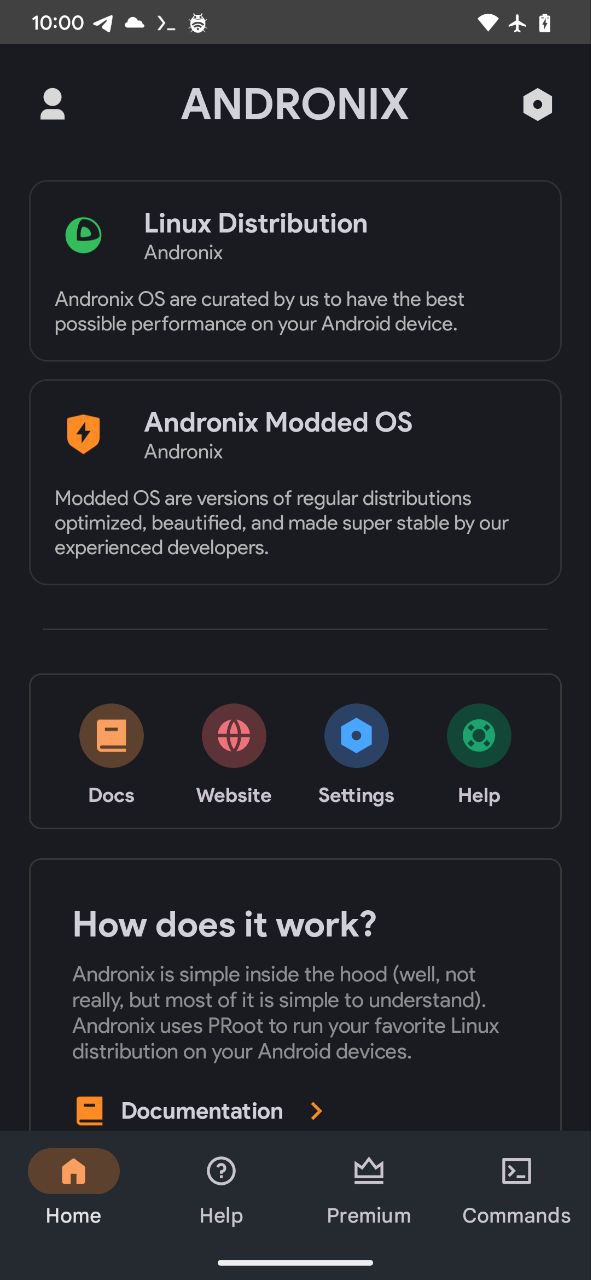
Select Distribution
You'll now see all the distributions available in Andronix.
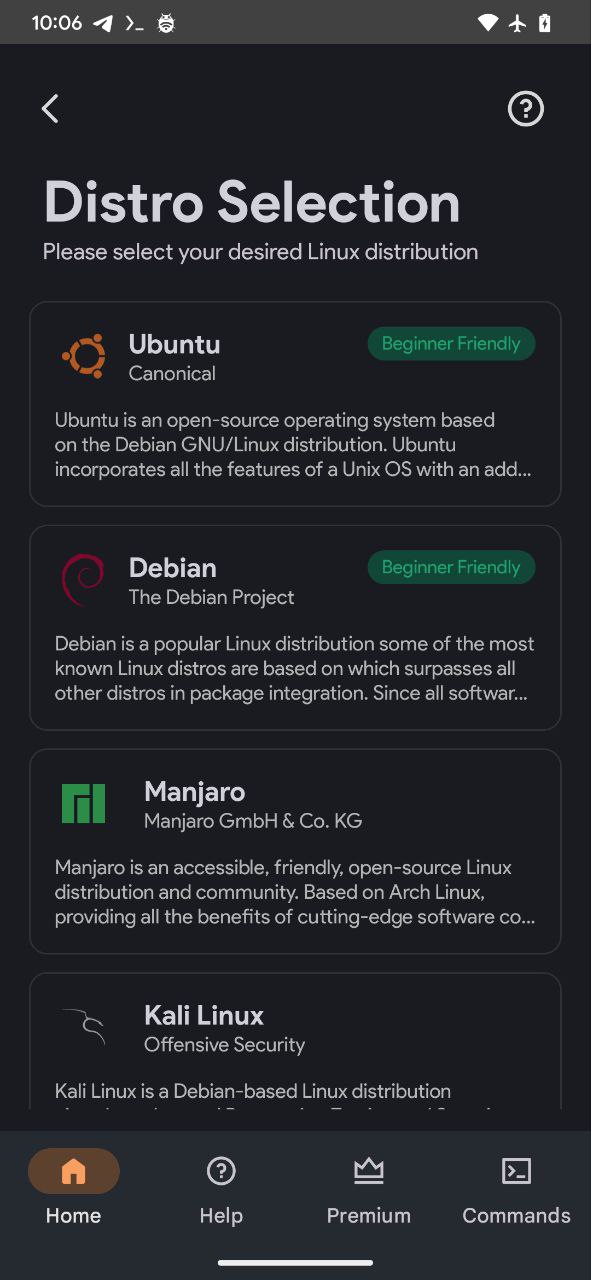
2. Selection ⭐
Long Press on Distribution
Long press the distro you want to uninstall. This opens a menu with options for that distro.
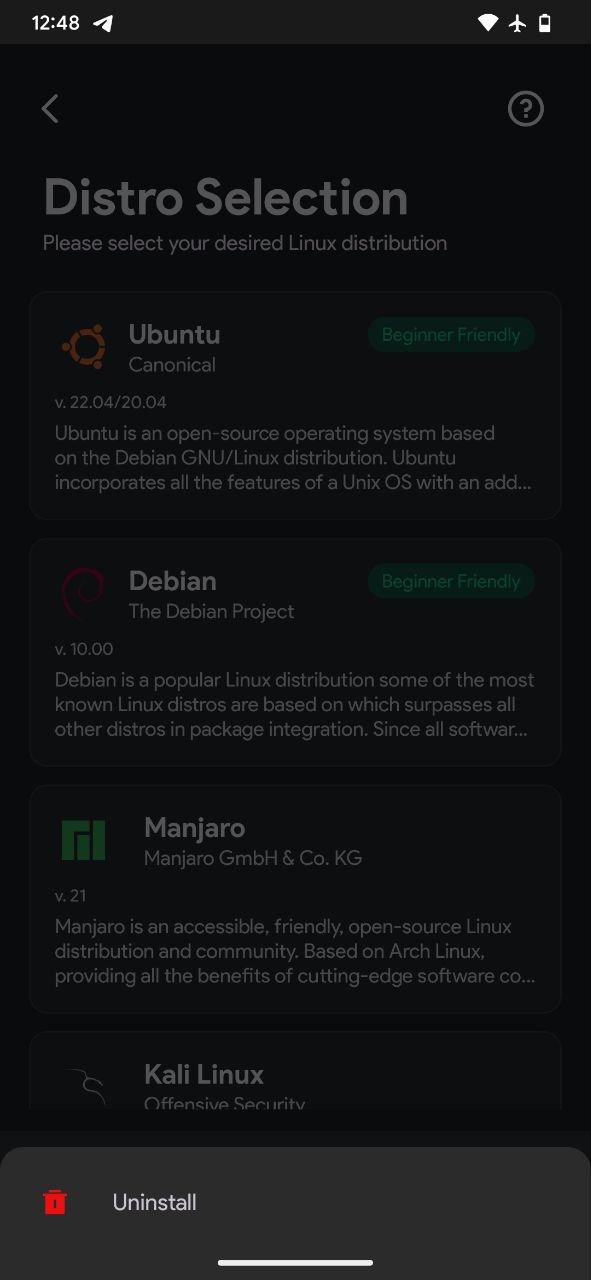
Select Uninstall
Tap the Uninstall button to start the process.
3. Termux Execution 💻
This is where your Linux distribution actually gets removed.
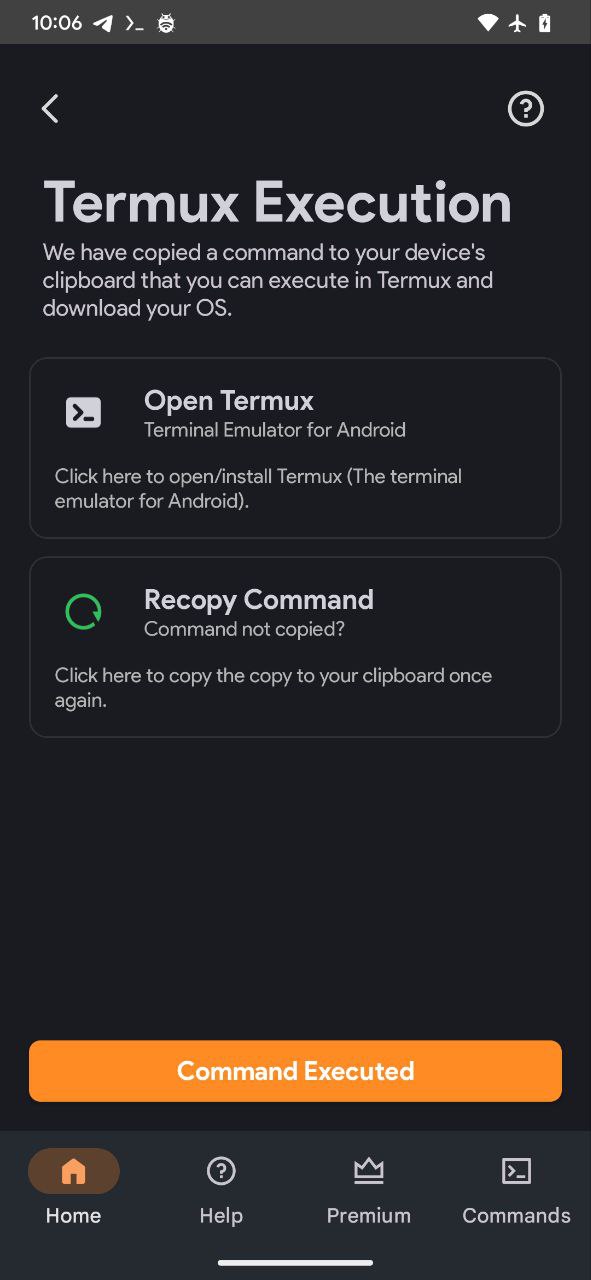
Termux
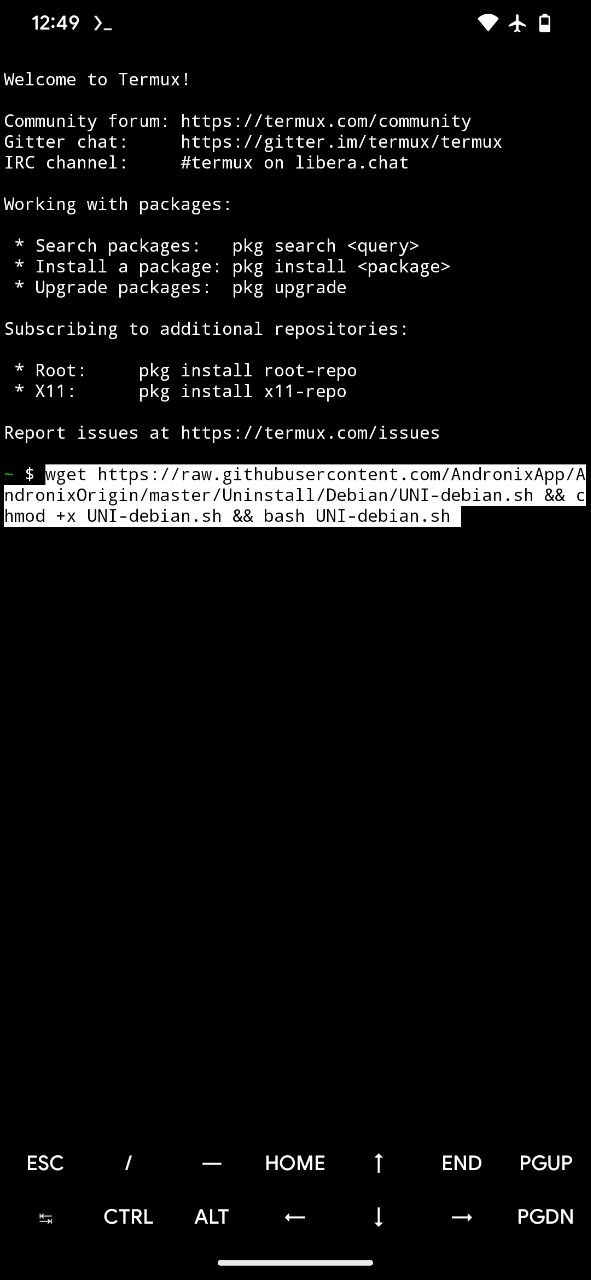
You'll run this command in Termux to remove the distro.
Paste and Execute
Open the Termux app, long press to paste the copied command, then press Enter to run it.
All done!
That's it! You've successfully uninstalled the Linux distribution from your Android device.
Next steps
- Installing a Distro: install a different distro.
- Modded OS: try a pre-configured distro with a ready-to-use desktop.
- FAQ: answers to common questions and errors.
Installing a Distro
Step-by-step guide to installing a Linux distro like Ubuntu, Debian or Manjaro on Android with the Andronix app and Termux, no root required.
Modded OS
Andronix Modded OS are paid, performance-tuned Linux distros with themes and essential software preinstalled, so you can skip setup and start working.