


The Desktop in the App: Toolbar, Keyboard and Mouse
How to type, click and move around the Linux desktop in the Andronix app, with touch, a hardware keyboard or a mouse.
The toolbar
A floating toolbar sits over the desktop. Drag its grip to move it.
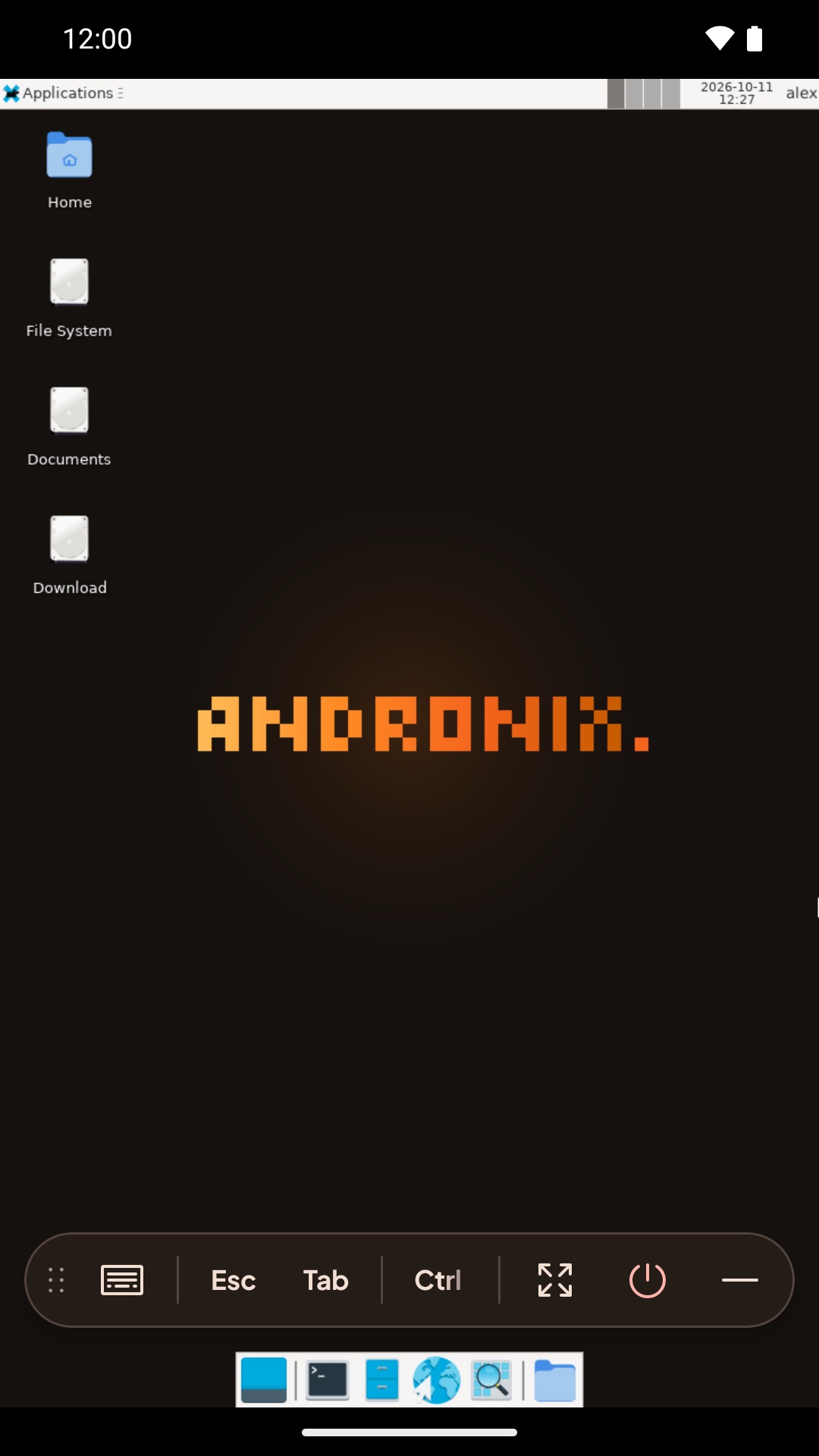
From left to right:
| Button | What it does |
|---|---|
| Move the toolbar (grip) | Drag to move the toolbar. |
| Keyboard | Opens the phone's keyboard, with a row of extra keys on top. |
| Esc, Tab | Send the key. Hold to repeat. |
| Ctrl, Alt, Shift | Tap: on for the next key. Long-press: locked on. Tap again: off. |
| Arrows | Send the arrow keys. Hold to repeat. |
| Mouse mode | Switch between Direct touch and Touchpad (below). |
| Fit to screen | Shown while you're zoomed in; zooms back out. |
| Mute / Unmute | Shown when the desktop has sound. |
| Full screen / Exit full screen | Hides Android's bars and the toolbar. Swipe down from the top edge to see the toolbar for a few seconds. |
| Desktop size | Standard, Sharp or Native. See Tablets and foldables. |
| Stop | Stops Linux. |
| Hide the toolbar | Collapses it to a small handle; tap Show the toolbar to bring it back. |
On a narrow screen the keys scroll; the grip, Stop and Hide the toolbar always stay visible.
Typing
Tap Keyboard. The phone's keyboard opens with a row of extra keys on top: Esc, Tab, Ctrl, Alt, Shift, /, - and the arrows. Gesture typing and autocorrect work in Linux apps.
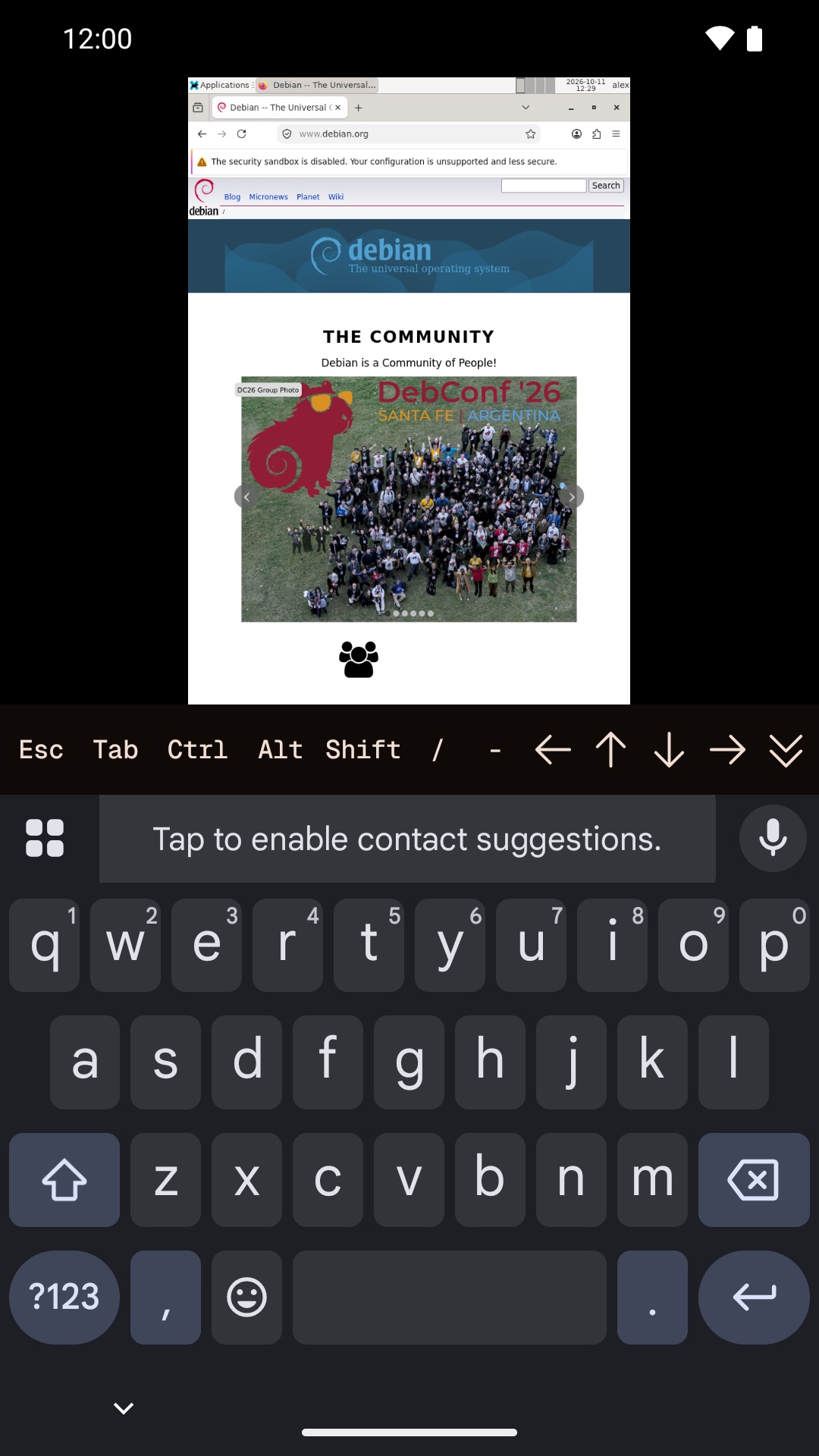
Copy and paste work both ways: text you copy in Linux is on Android's clipboard right away. Text you copy in Android reaches Linux when you go back to the desktop.
Mouse modes
Tap Mouse mode to choose:
- Direct touch (the default): tap where you want to click. Long-press to right-click.
- Touchpad: slide to move the pointer, tap to click, two fingers to scroll or right-click. Double-tap and hold to drag.
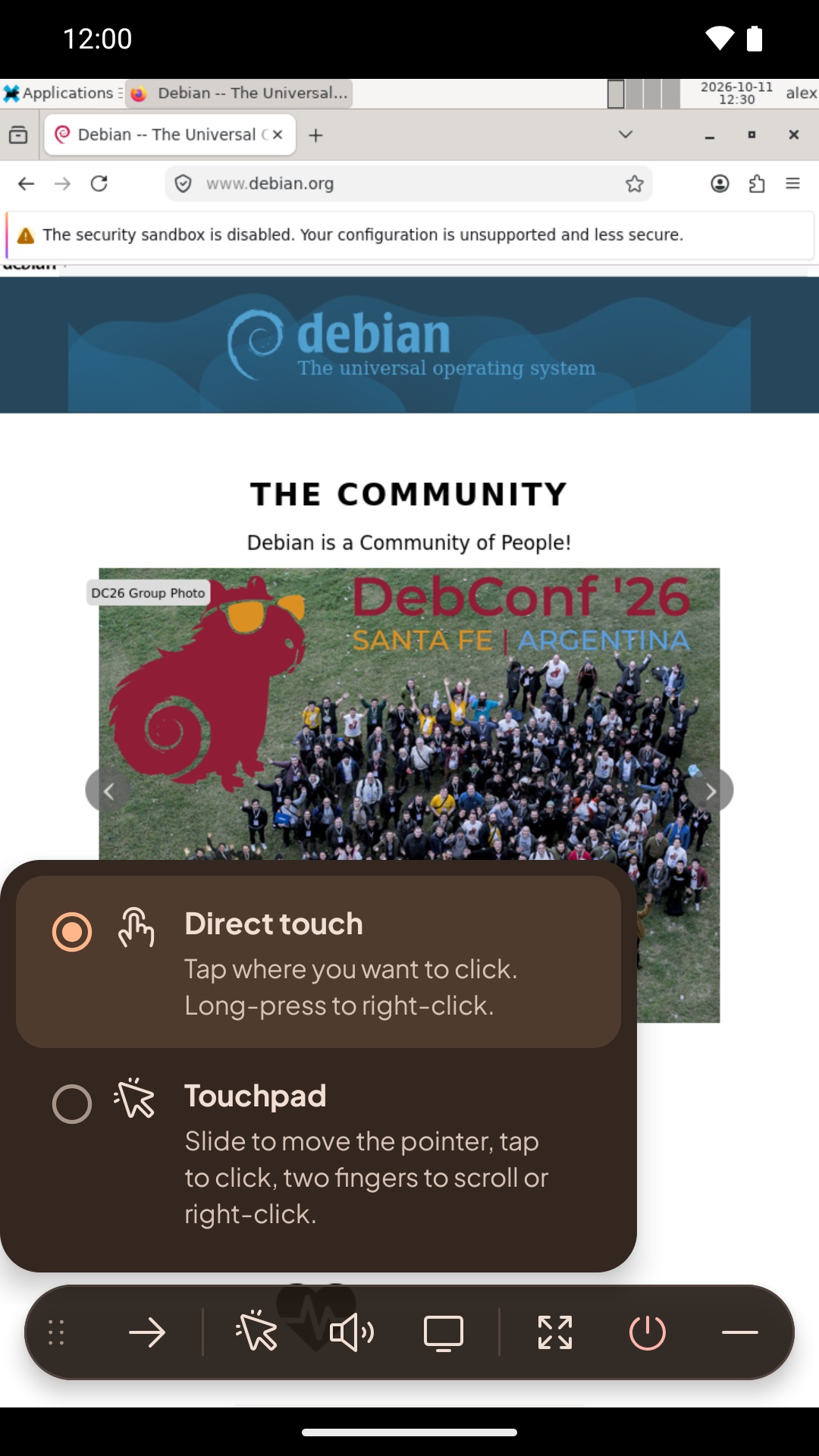
In both modes: a quick two-finger tap right-clicks, a two-finger drag scrolls, and pinching zooms. The app remembers your choice.
A hardware keyboard
Connect a Bluetooth or USB keyboard and the toolbar drops the keys you no longer need (Keyboard, Esc, Tab, Ctrl, Alt, Shift and the arrows).
- Linux gets every key the app receives, including F1 to F12, the Meta key (Super in Linux), and Ctrl and Alt combinations.
- Android keeps a few: Back leaves the desktop (Linux keeps running), and Android's own Home, Recents and system shortcuts never reach the app.
- Andronix shortcuts: Ctrl + Alt + F switches full screen on or off, and Ctrl + Alt + Backspace shows the toolbar in full screen.
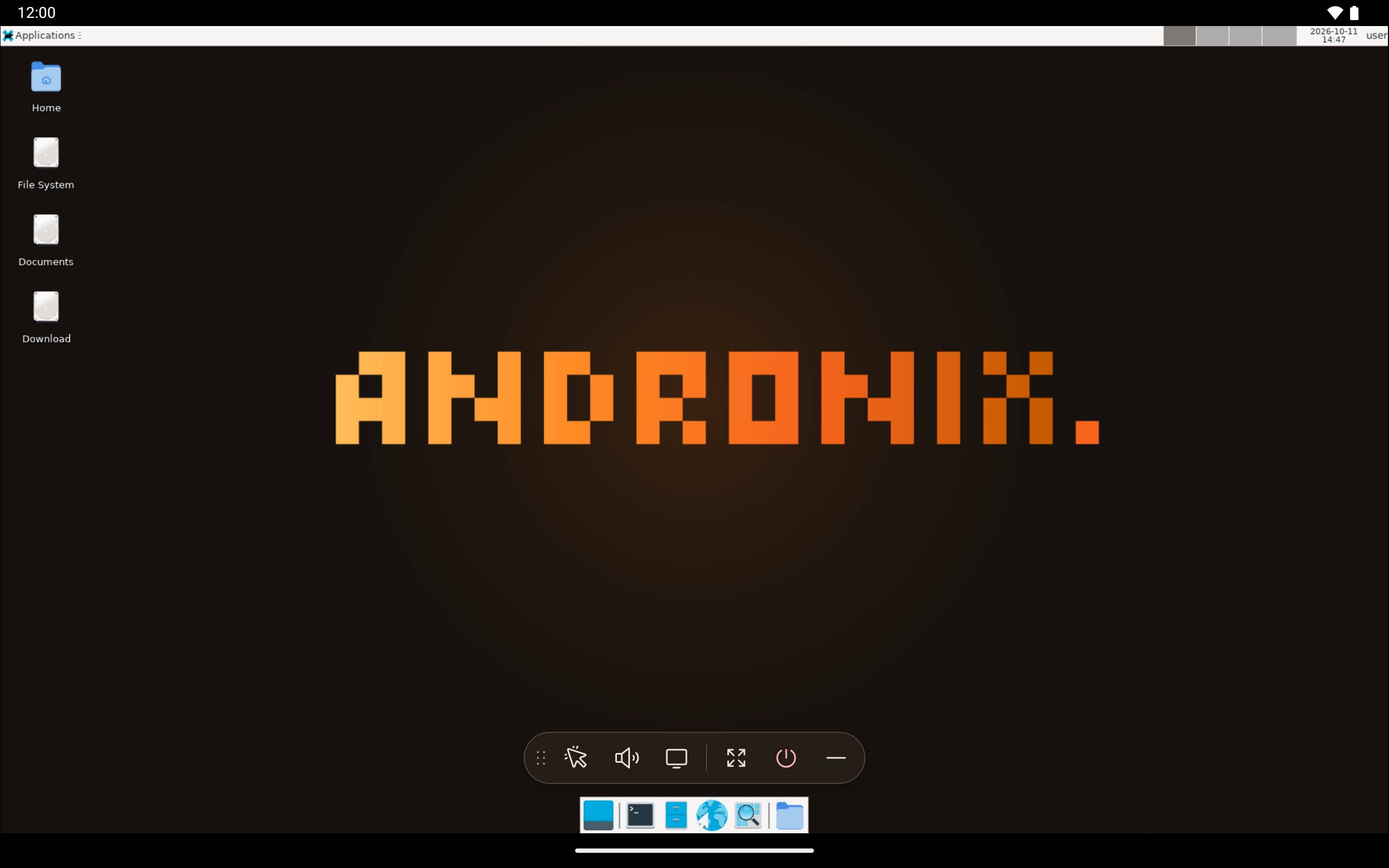
A mouse
A Bluetooth or USB mouse works as on a computer: moving, left, middle and right click, and the wheel. Over the desktop, Android's pointer hides and Linux draws its own.
In full screen, the app captures the mouse, so it moves only inside Linux (handy for games and 3D apps). Press Ctrl + Alt to release it; the app says "Mouse released. Click the desktop to capture it again."