


Android Files in Linux
Share files between Android and Linux in the Andronix app - the shared folders, Import, Send to Linux, and your Linux home in the Files app.
Open Settings › Linux › Android files in Linux to see how files move between Android and your distro. Nothing leaves your device.
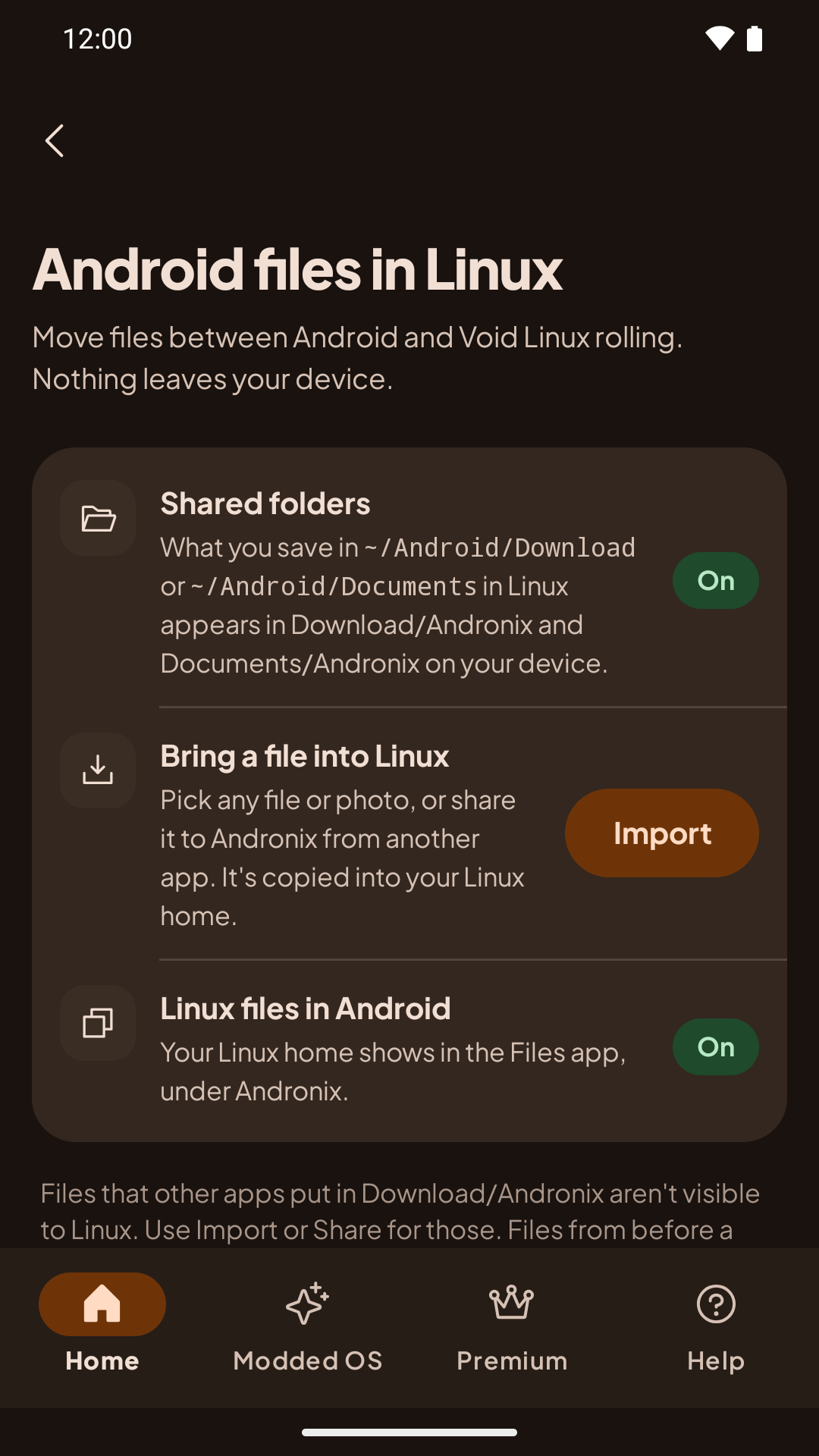
Shared folders
Two folders are shared between Android and Linux:
| In Linux | On your device |
|---|---|
~/Android/Download | Download/Andronix |
~/Android/Documents | Documents/Andronix |
What you save in those folders in Linux appears in Android right away, for example in the Files app, a gallery or an email app. Each distro has a ~/Android/README.txt that says the same.
- Android 11 and newer: no permission is needed.
- Android 8 to 10: the app asks for the storage permission the first time. If you said no, tap Allow on the screen, or allow it in Android's settings.
Only these two folders are shared. The rest of your phone's storage isn't visible inside Linux.
Bring a file into Linux
- Import: on the Android files in Linux screen, tap Import, then Photos and videos or Files, and pick what you want.
- Share: in any app, share a file and pick Send to Linux.
The file is copied to your Linux home: the home of the distro that's running, or the one you used last. The app says when it's done, for example "Copied report.pdf into your Debian home."
Your Linux home in the Files app
Your Linux home shows up in Android's Files app and in file pickers, under Andronix, with one entry per distro. You can open, add, rename and delete files there. It only shows the home, not the rest of the distro.
Install Apps
Install browsers, IDEs like VS Code and IntelliJ IDEA, LibreOffice and GIMP inside your Andronix Linux distro, with the commands for each distro.
Linux Apps on Your Home Screen
Pin a Linux app to Android's home screen so it opens with one tap, and what happens to shortcuts when you remove a distro.