


Your Linux on Home
Start, open and stop the distros you installed in the app, the ⋮ menu (shortcuts, safe mode, desktop size, add a desktop, remove), the Linux is running notification, and what happens when Android stops Linux.
The distros you installed in the app are listed on Home under Your Linux, the one you used last first.
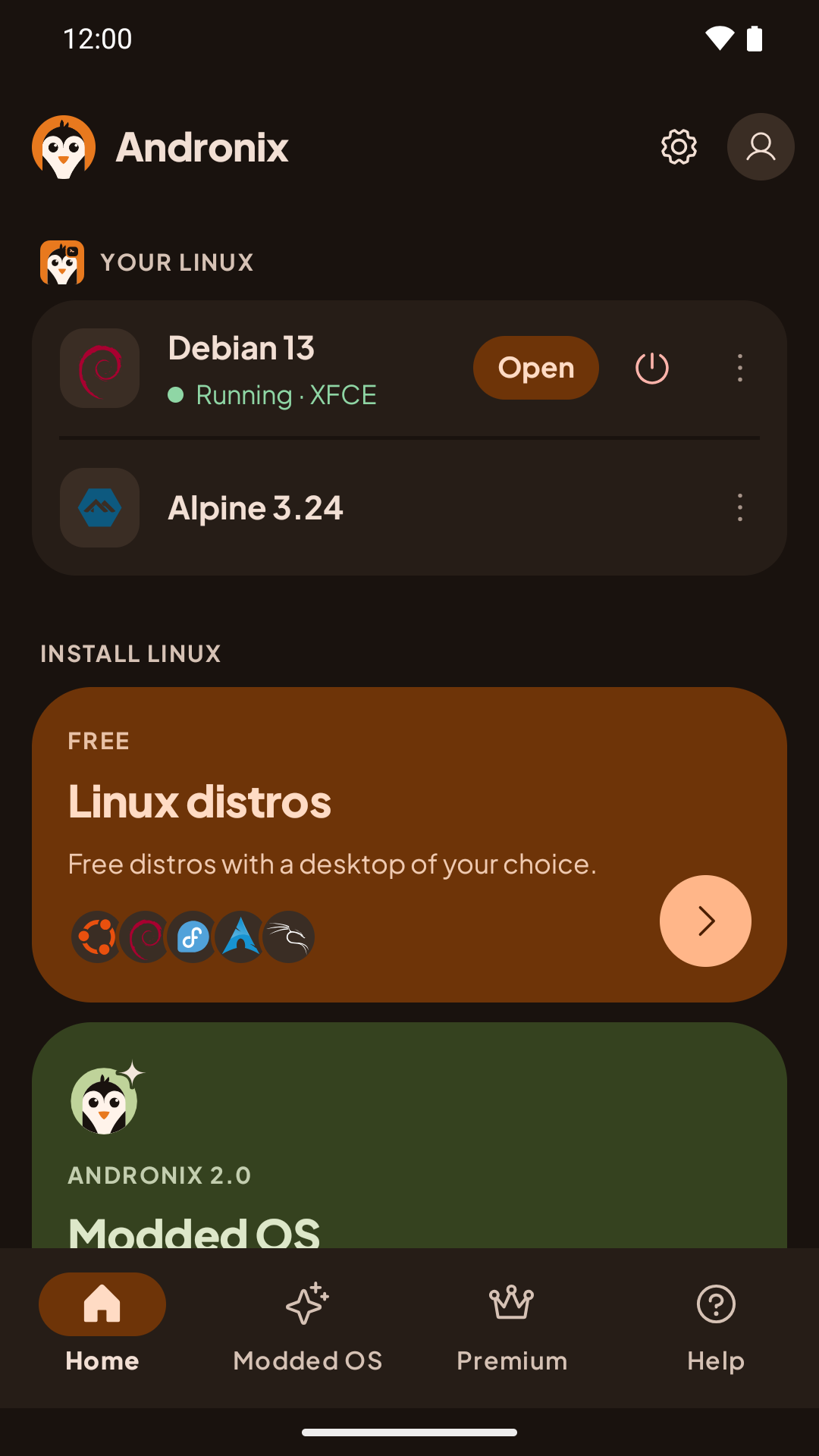
Open and stop
- Open the desktop: tap the distro's row. The first start can take a minute; a loading screen shows Starting Linux, Starting the desktop and Almost ready.
- Terminal: tap the terminal button at the end of the row to open Andronix's own terminal for that distro. While the distro runs, the row shows Running and an Open pill, and the terminal moves into the ⋮ menu (Open the terminal).
- Command-line distros (installed without a desktop) open in the terminal.
- Stop: while it runs, tap the power button on the row and confirm. Apps on the desktop close and anything unsaved is lost.
One distro runs at a time. To open a different one, stop the one that's running first.
On a tablet or an unfolded foldable, Home shows the distro's details next to the list. See Tablets and foldables.
The ⋮ menu
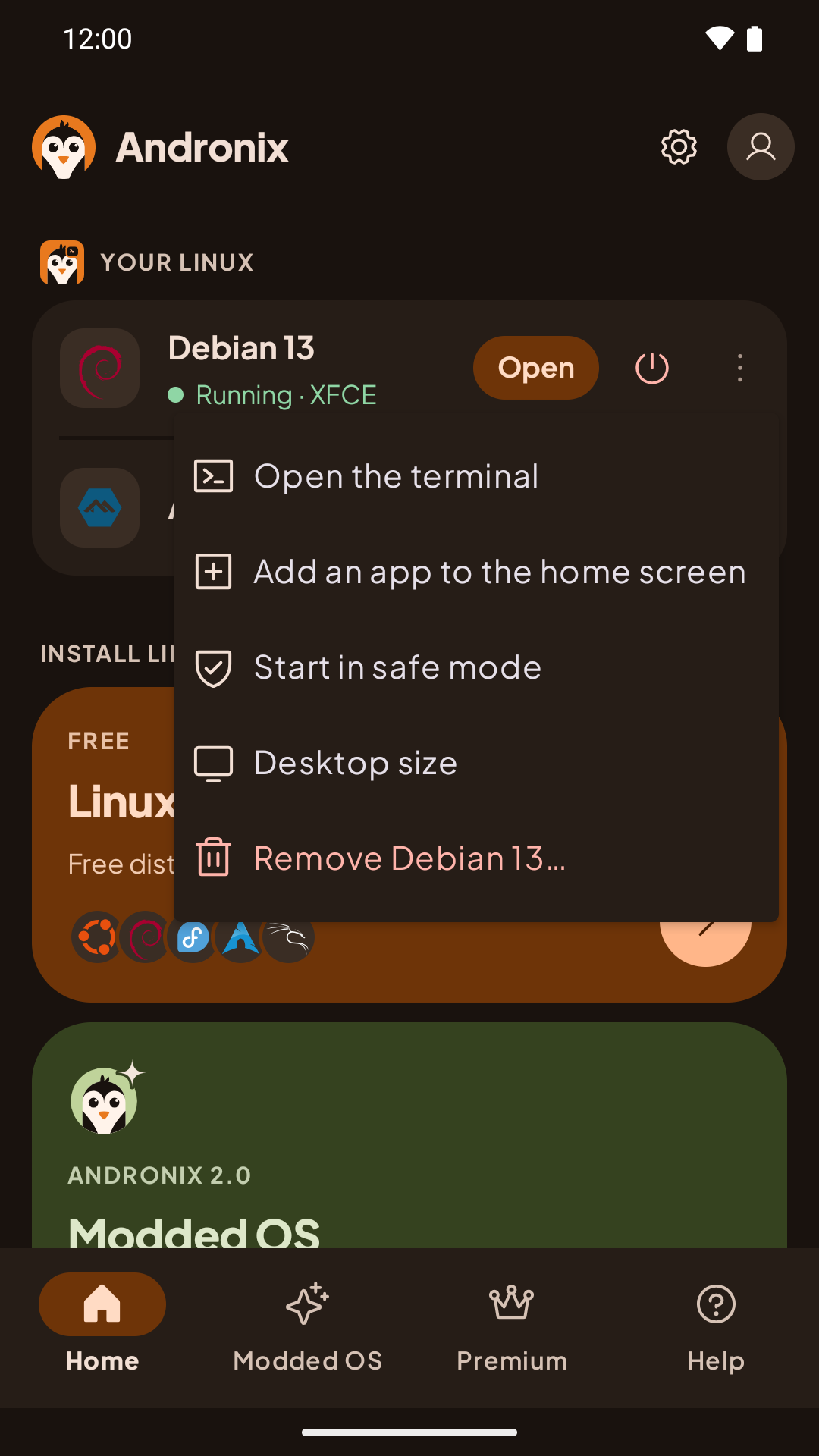
Tap ⋮ next to a distro:
| Item | What it does |
|---|---|
| Open the terminal | Shown while the distro runs: opens its terminal. |
| Add an app to the home screen | Pin a Linux app to Android's home screen (Android 8 and newer). See Linux apps on your home screen. |
| Start in safe mode / Turn off safe mode | Starts the desktop with lighter, safer settings, every time until you turn it off. See Black screen and safe mode. |
| Desktop size | Standard, Sharp or Native. See Desktop size. |
| Add a desktop | Only for command-line distros: adds XFCE, LXQt, MATE or KDE Plasma. Your files and apps stay. See Add a desktop. |
| Remove (for example Remove Debian 13…) | Deletes the distro and everything inside it. See Remove a distro in the app. |
The Linux is running notification
While a distro runs, Android shows a notification with how long it has run and about how much memory it uses. Tap it to open the desktop.
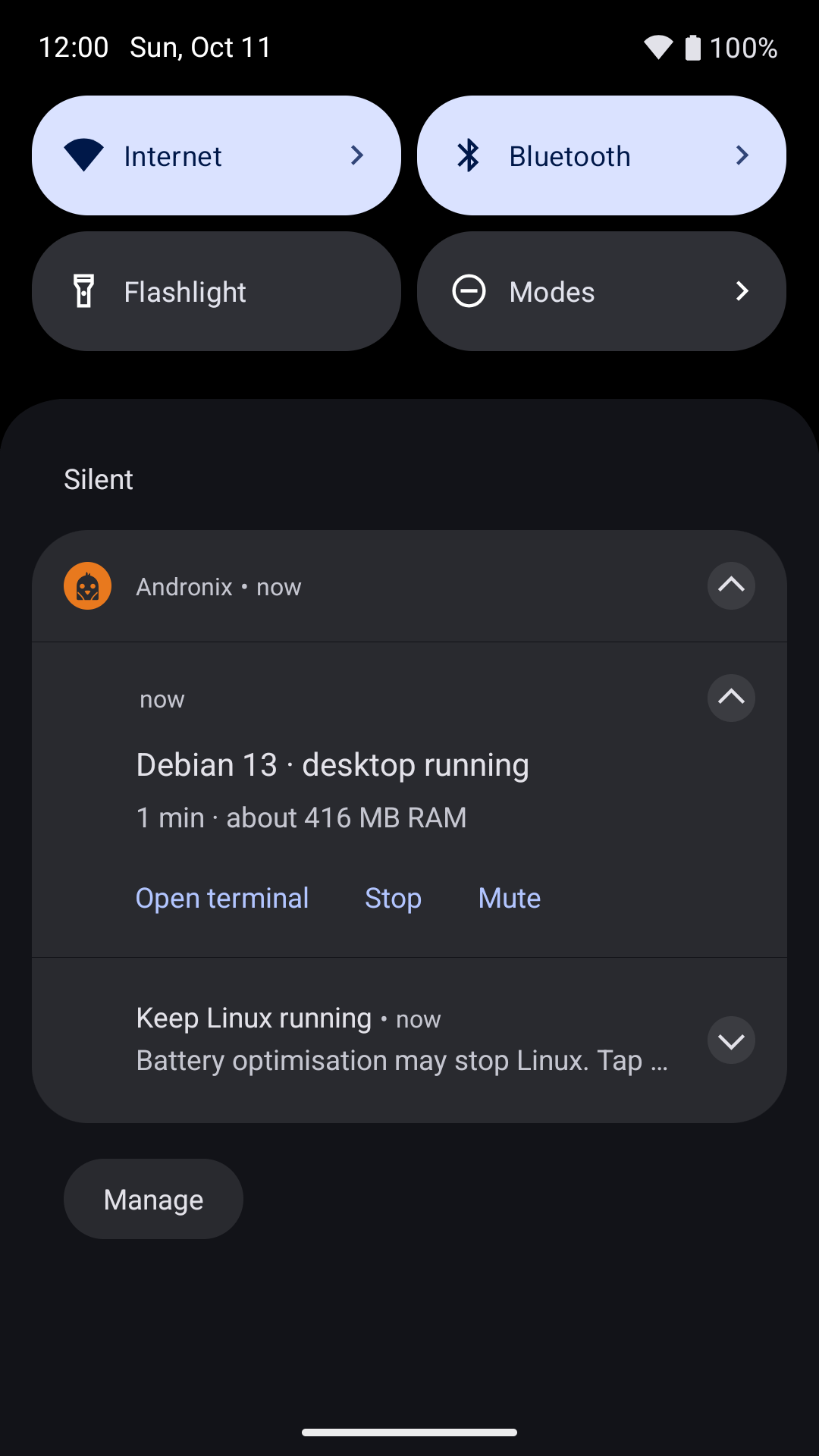
Its buttons are Open terminal and Stop, plus Mute when the desktop has sound, or Open desktop when it doesn't. Stop in the notification stops the desktop, the terminal and any install right away, without asking, so save your work first.
Keep Linux running
If battery optimisation applies to Andronix, the app shows Keep Linux running once. Tap it to turn battery optimisation off for Andronix, so Android doesn't stop Linux in the background.
If Android stops Linux anyway, you get Android stopped Debian (with your distro's name). Tap it to start it again, or Why? to read about Android's background limits: Process completed (signal 9). The app keeps a log of what happened and attaches it to your next problem report.
Tablets and Foldables
Andronix on big screens - the navigation rail, two-pane Home, desktop size, tabletop mode and folding with the desktop open.
Install Apps
Install browsers, IDEs like VS Code and IntelliJ IDEA, LibreOffice and GIMP inside your Andronix Linux distro, with the commands for each distro.