Install in the App
Install a distro in the Andronix app, set up your user, and open the desktop for the first time.
Open Linux distros
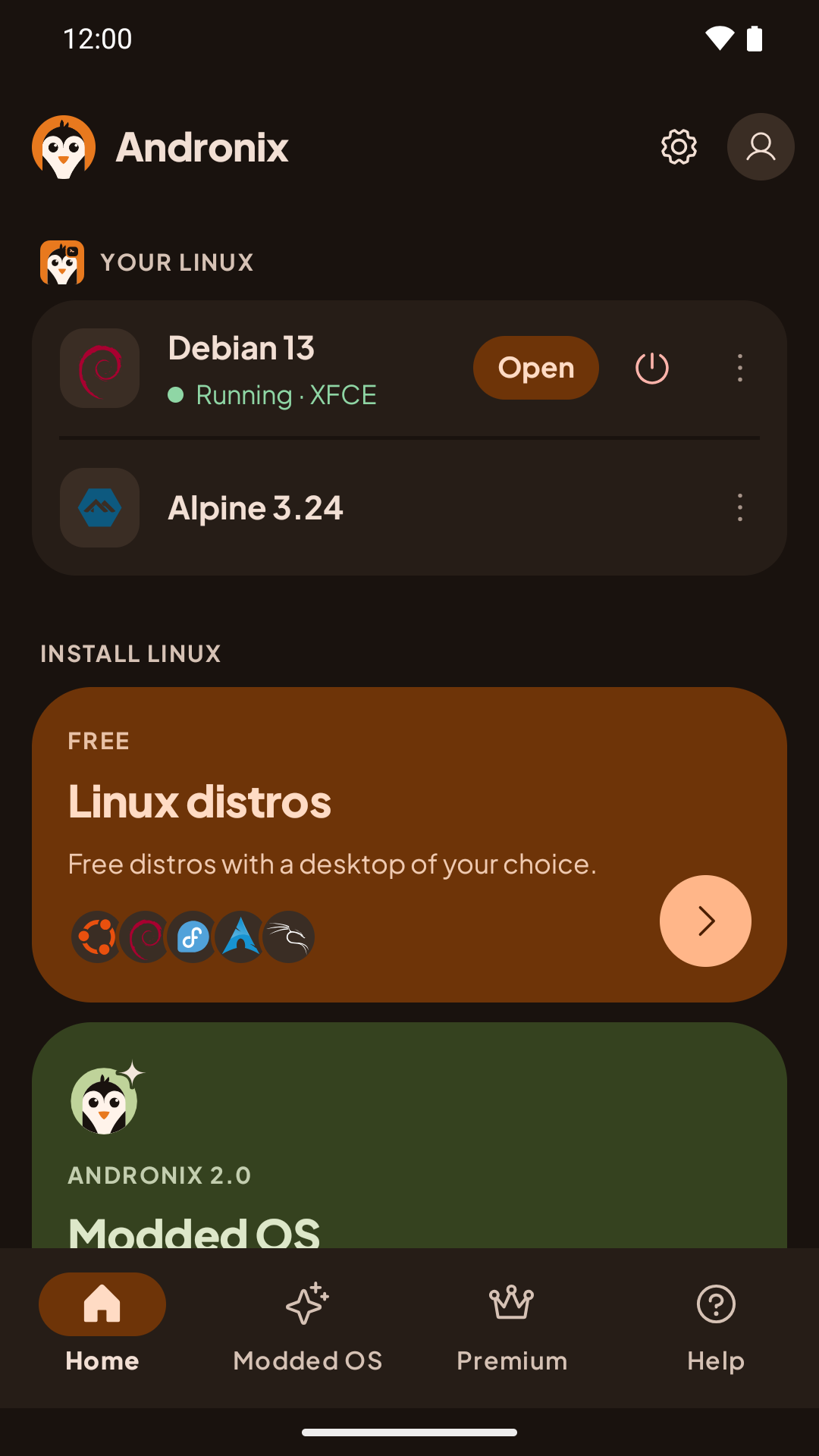
On Home, under Install Linux, tap Linux distros. On a device that can run Linux in the app, the distro installs in the app; there's nothing to choose.
If you already used Andronix with Termux, check where new installs go: Settings › Linux › Run Linux. See Coming from Termux.
Pick a distro and a desktop
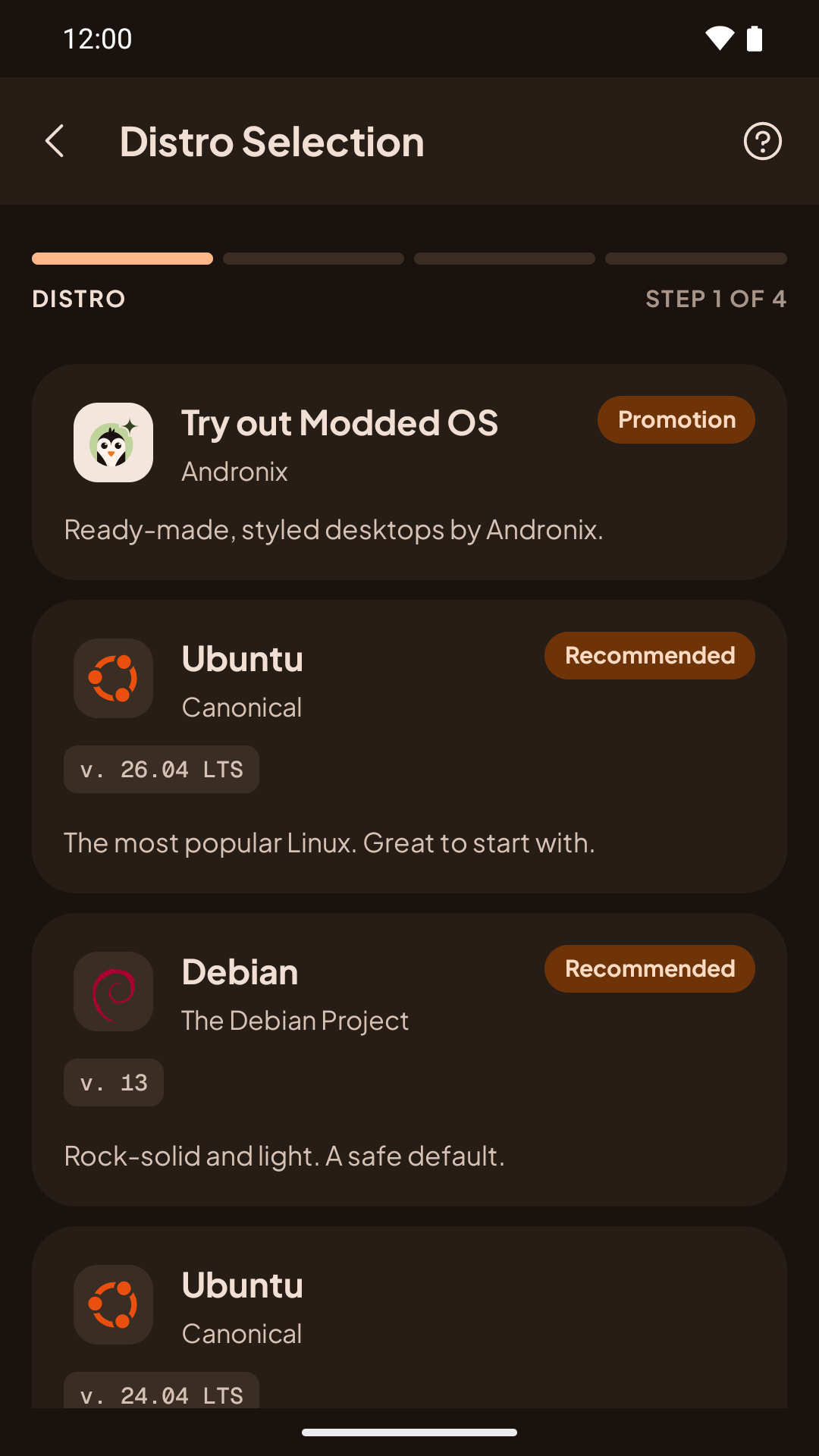
Choose the distro on Distro Selection. Then choose Desktop Environment or Command line only (no desktop), and for a desktop, pick XFCE, LXQt, MATE or KDE Plasma. Not sure which? See Choose a distro and desktop.
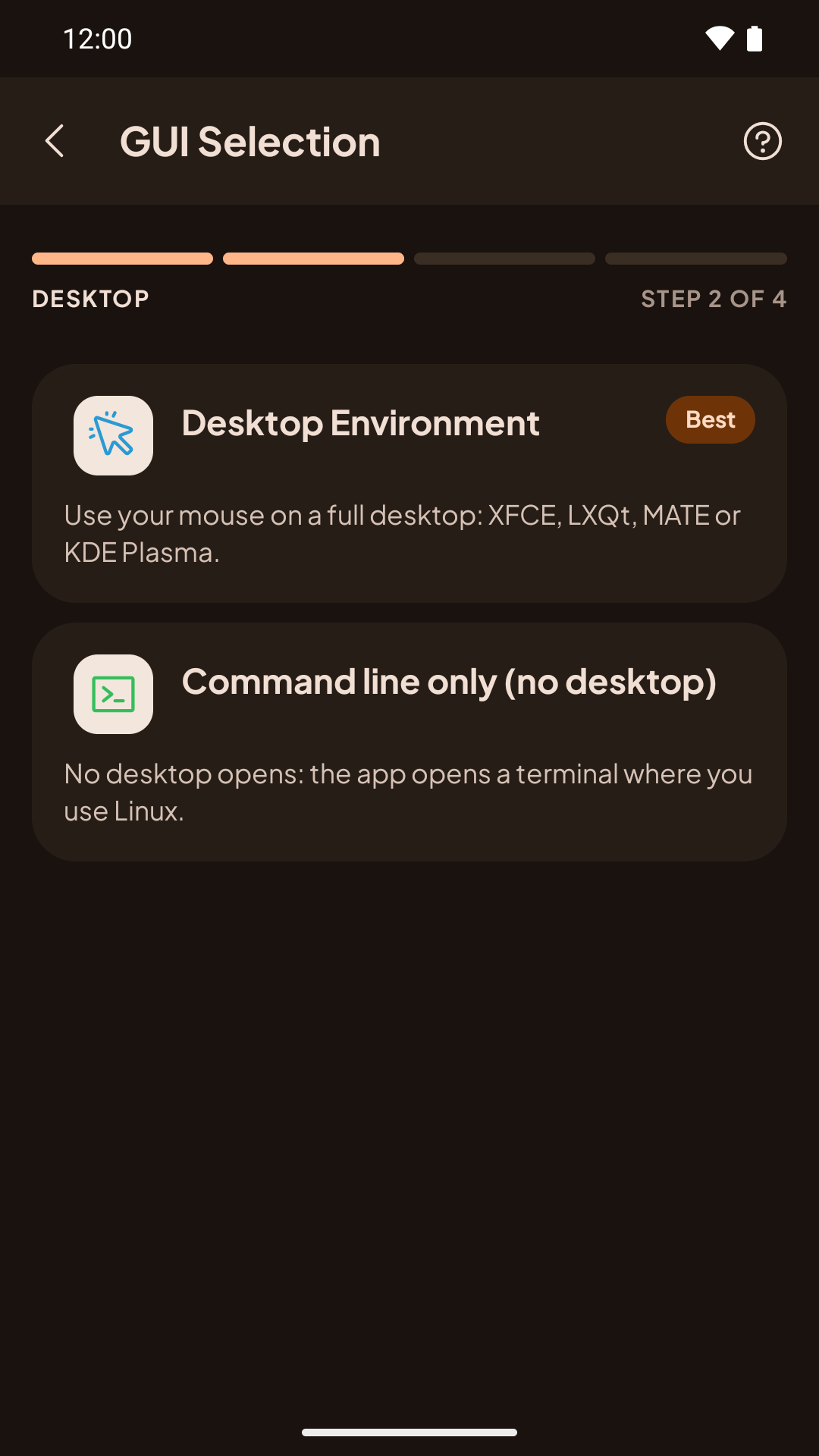
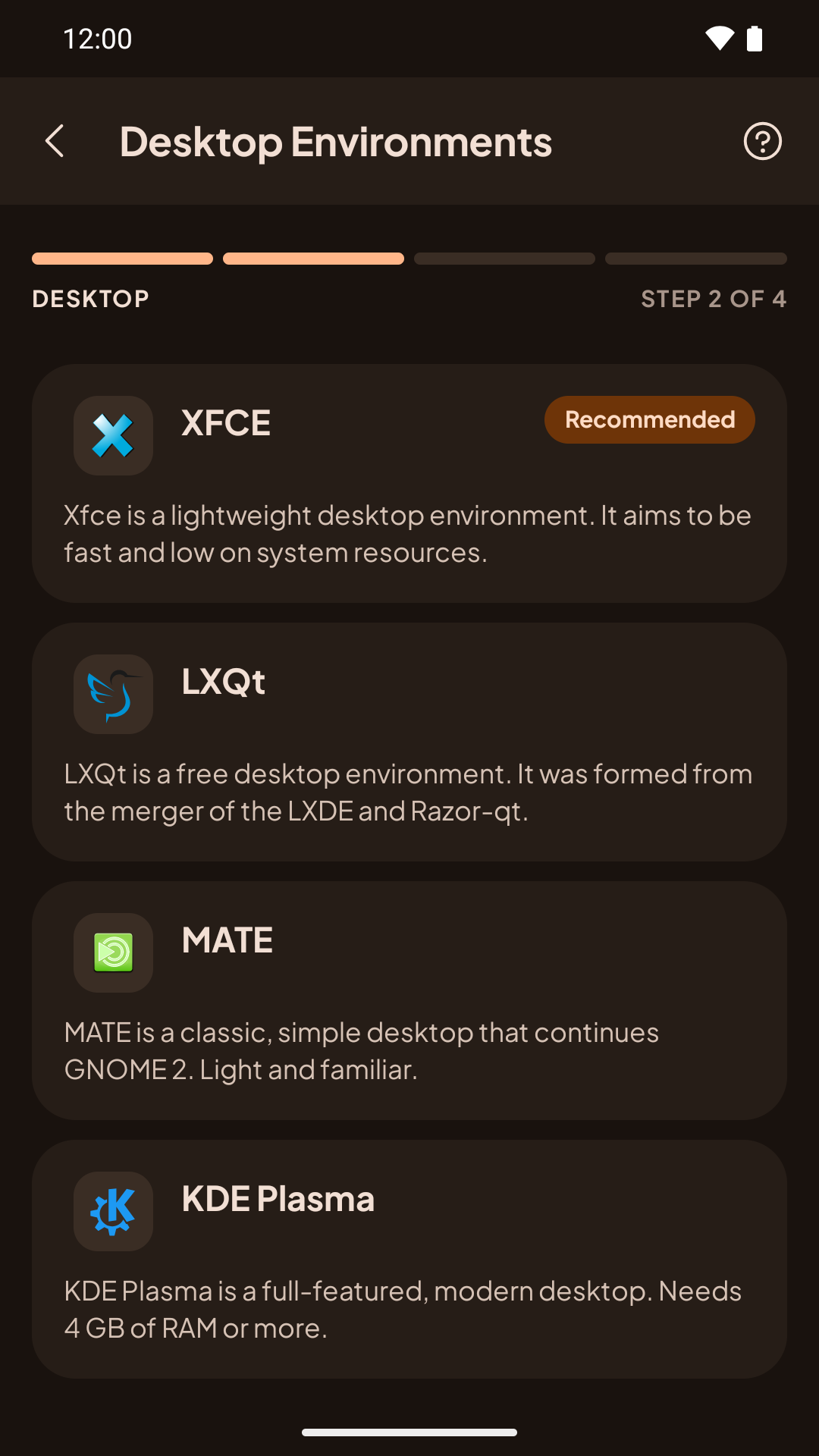
- Command line only (no desktop): no desktop opens; the app opens a terminal where you use Linux. You can add a desktop later.
- KDE Plasma needs about 4 GB of RAM. On a device with less, the app warns you and suggests XFCE.
Set up your user
Enter a User name (lower-case letters and numbers, for example alex) and a Password (at least 4 characters), then tap Continue. The root account stays locked; use sudo with this password for admin work. (On Void, sudo doesn't ask for a password; on Manjaro, use the root terminal for admin work.)
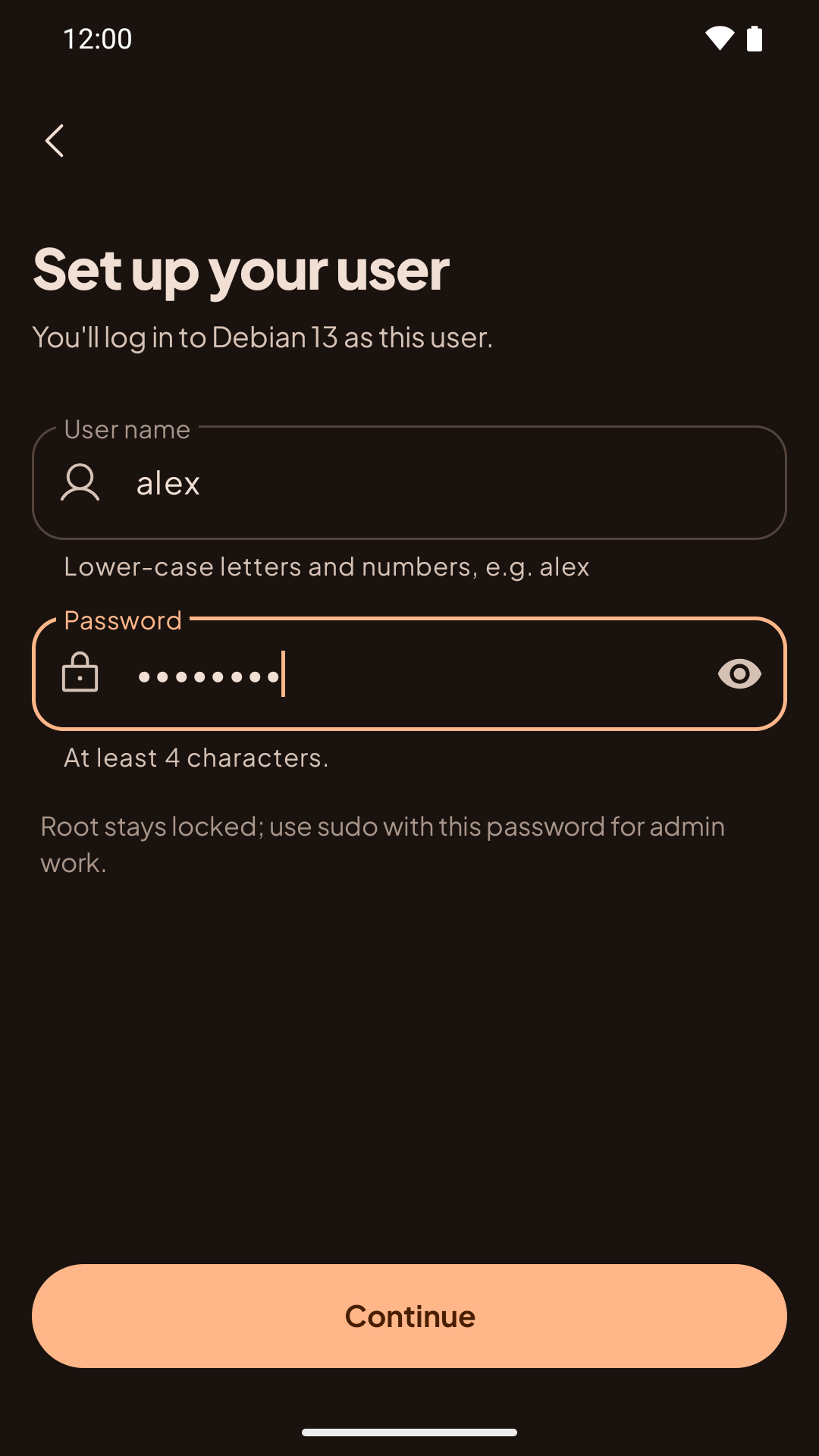
The app also passes your phone's time zone and keyboard layout to the distro.
Wait for the install
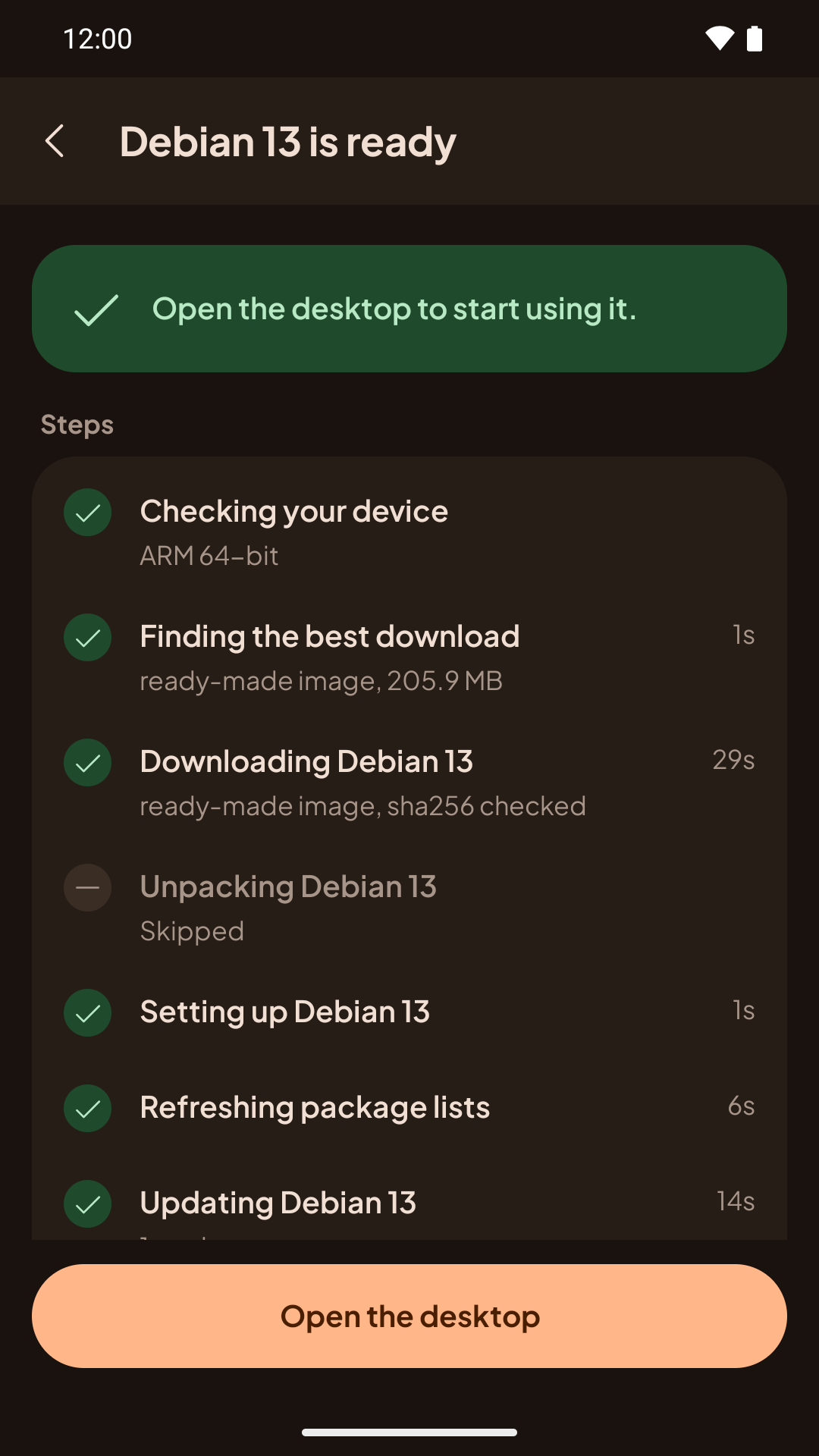
The app shows each step as it goes: checking your device, downloading and unpacking the distro, installing the desktop and a web browser, and setting up your user. It usually takes 5 to 30 minutes, depending on your phone and your connection.
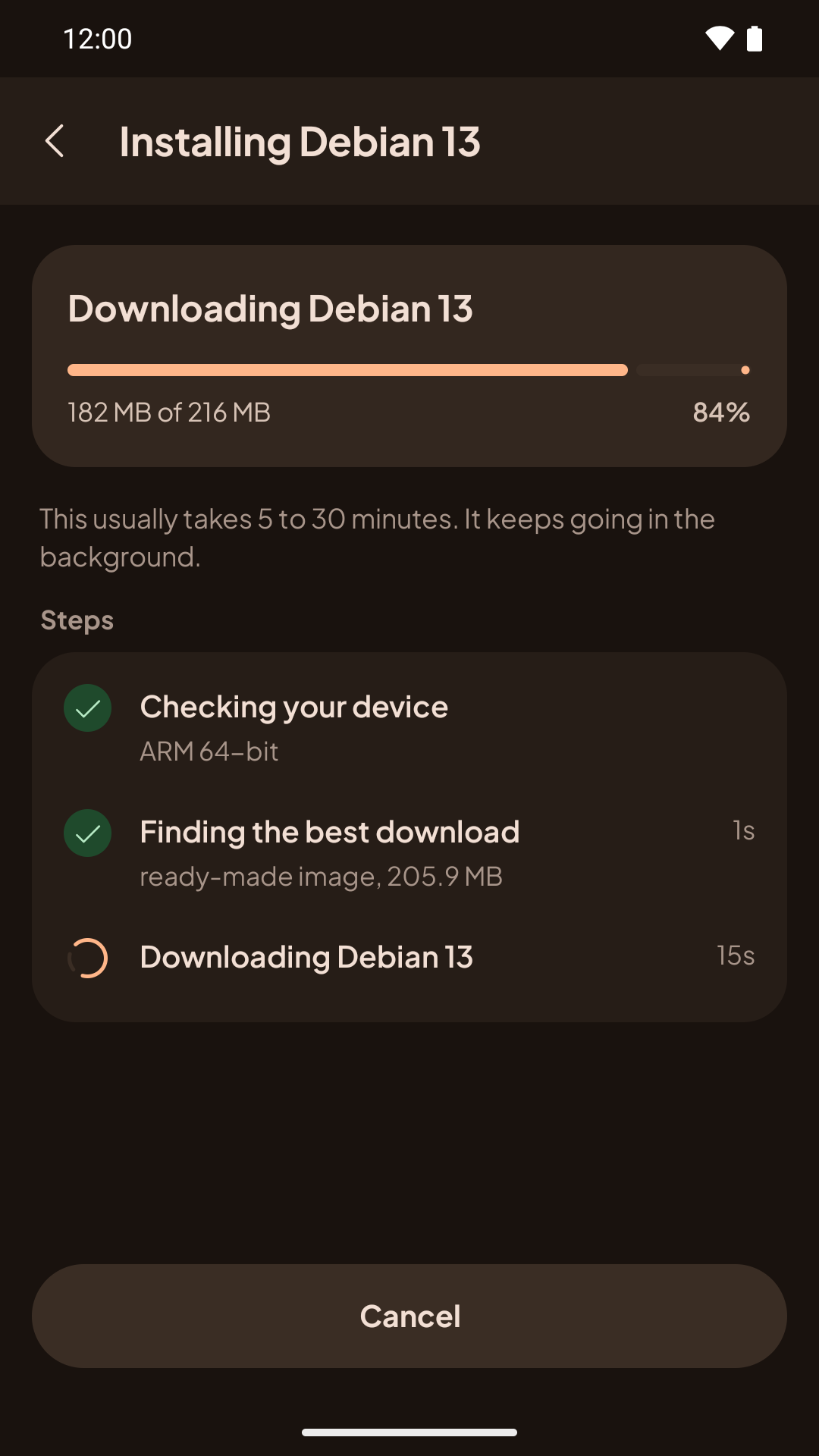
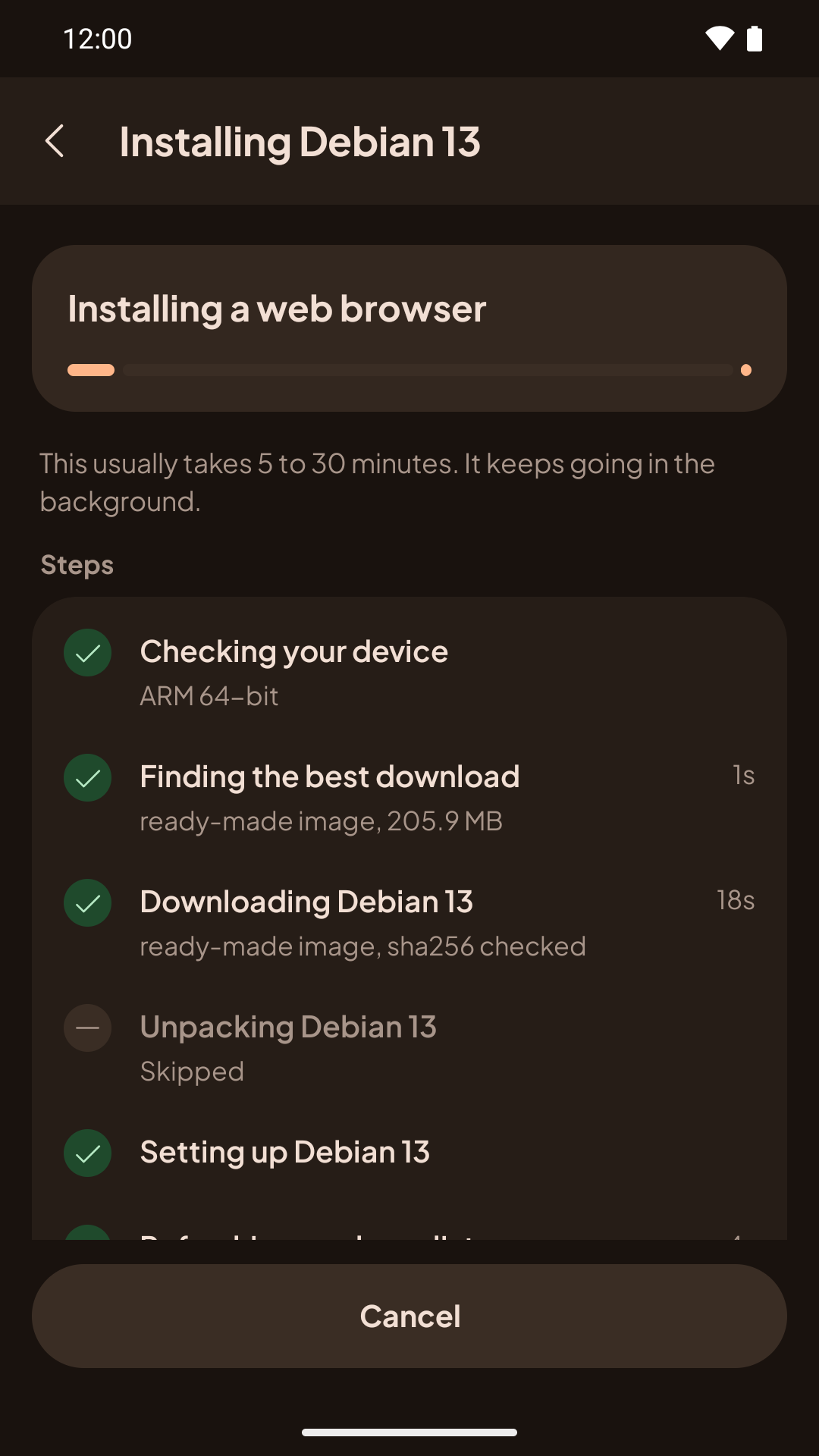
The install keeps going if you leave the app. Android shows an Installing Debian notification (with your distro's name) with the step, the time left and Cancel; tap it to come back. The first time, on Android 13 and newer, the app asks to send notifications so it can tell you when the install finishes.
To stop the install, tap Cancel (or press Back), then Stop. You can start it again later.
Open the desktop
When the install is done, the app says Debian is ready (with your distro's name). Tap Open the desktop. For a command-line install, tap Open the terminal instead.
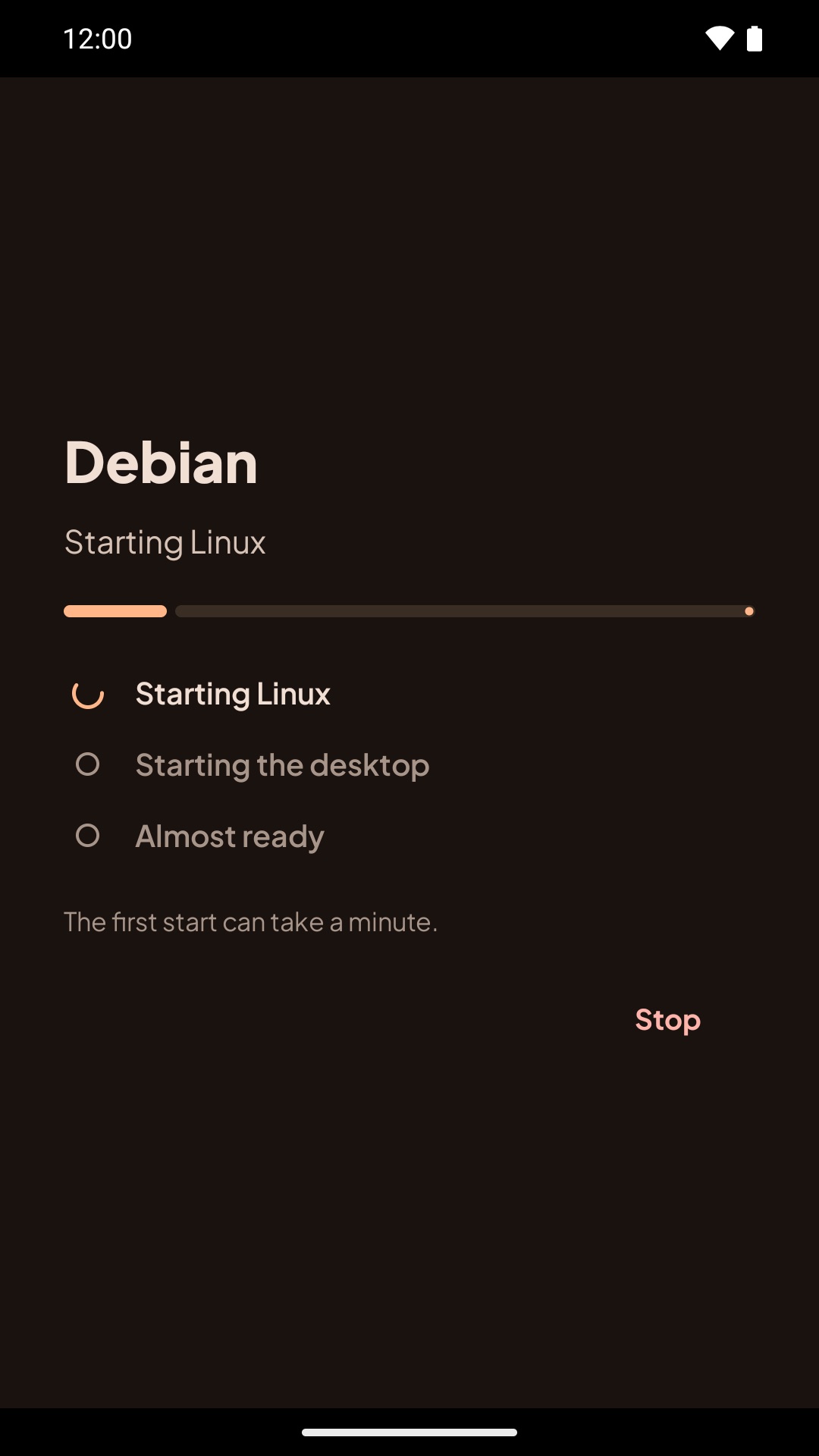
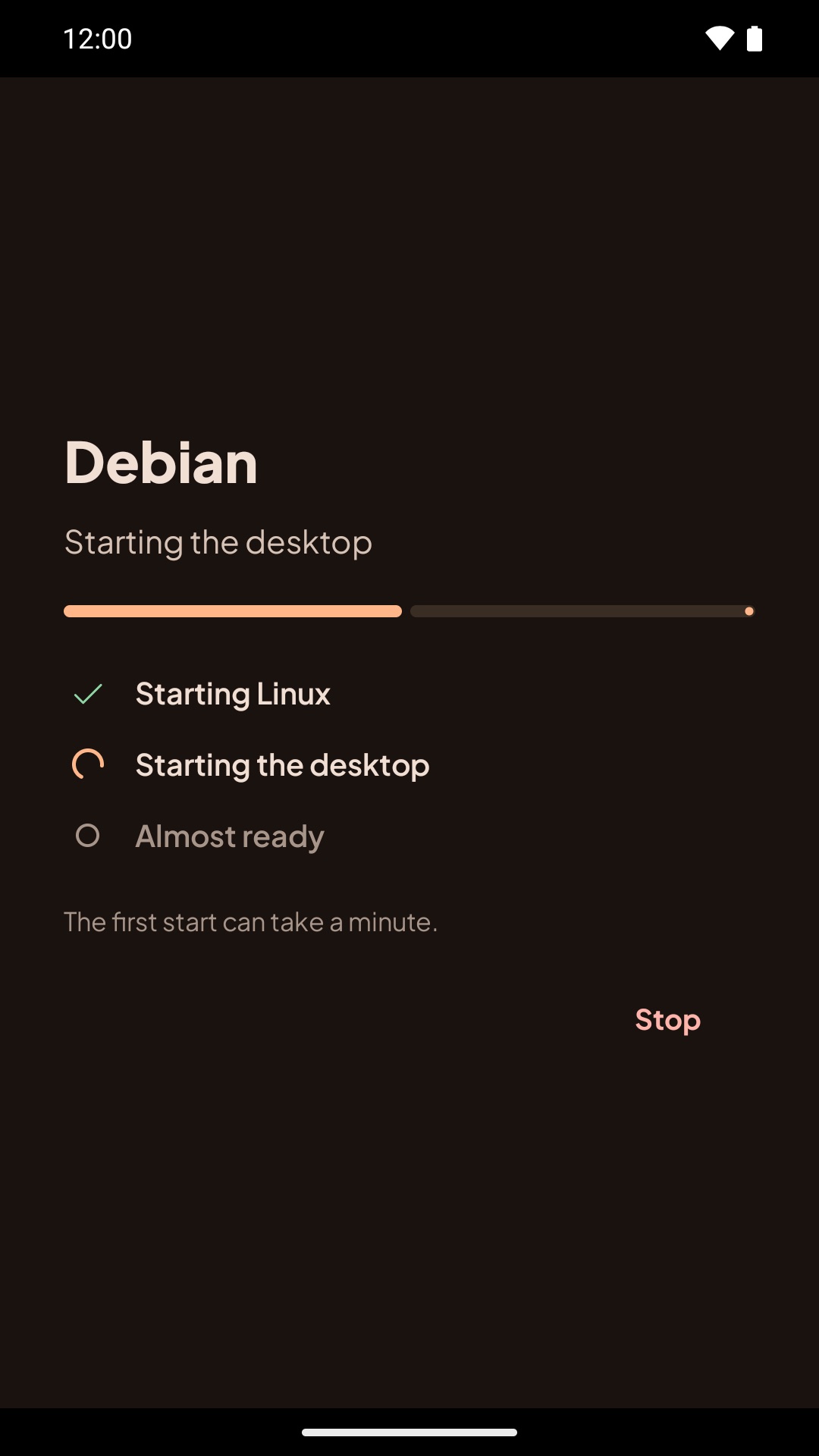
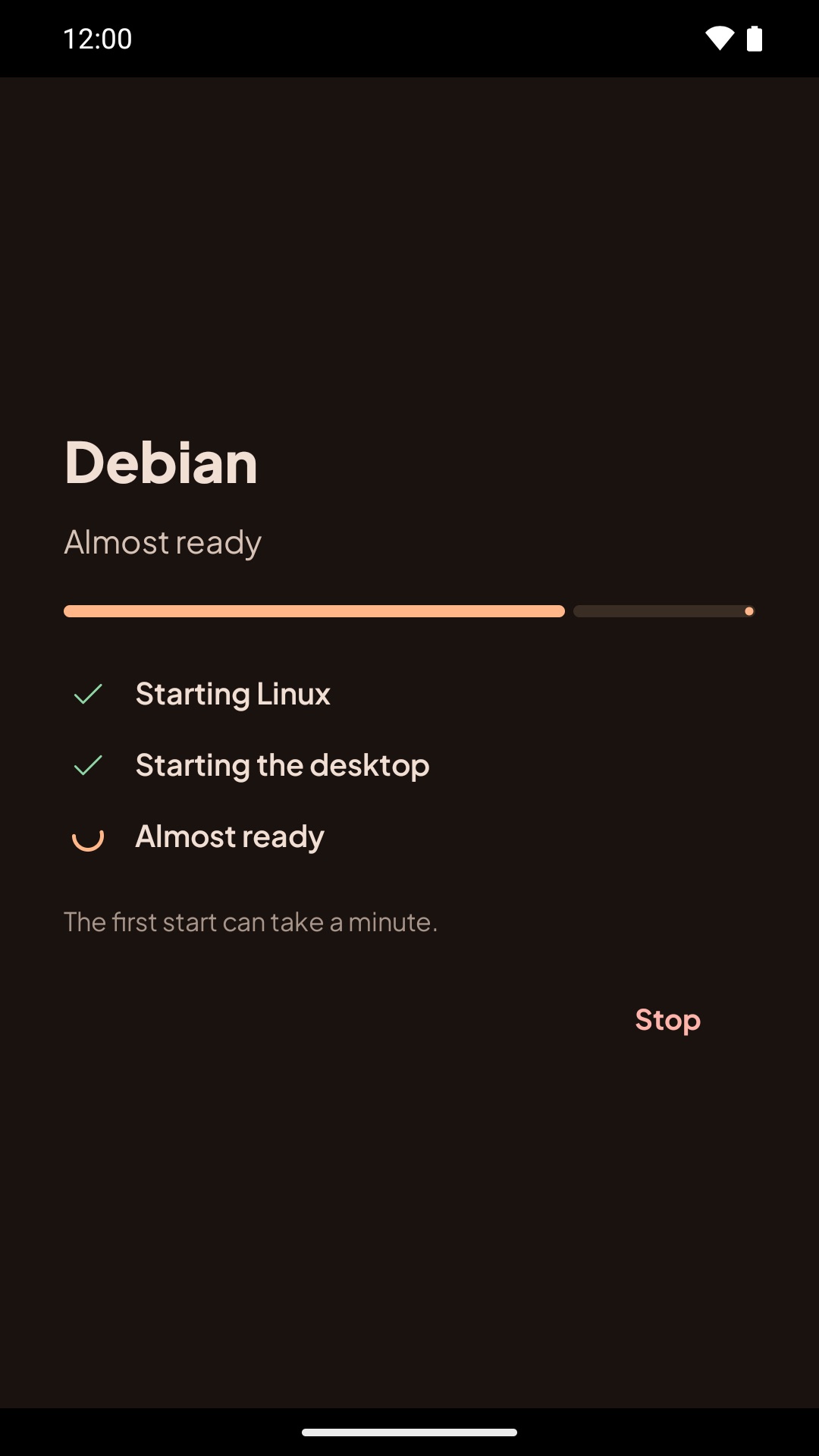
A loading screen shows the steps (Starting Linux, Starting the desktop, Almost ready) and stays up until the desktop has really drawn. The first start can take a minute; later starts take a few seconds.
Later starts
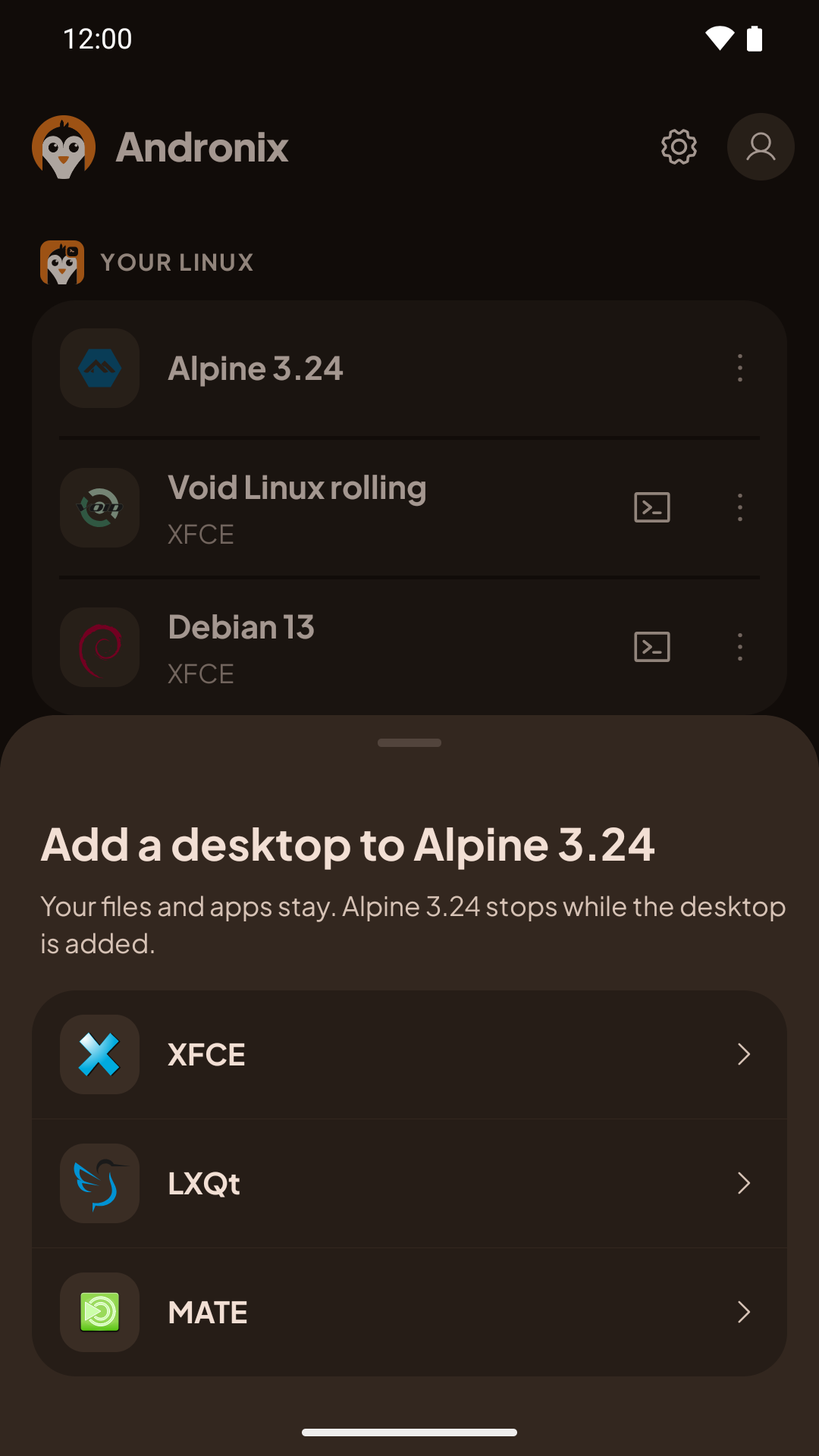
Your distro is listed on Home under Your Linux. Tap its row to open the desktop. While it runs, the row shows Running and an Open pill, with Stop and a ⋮ menu at the end.
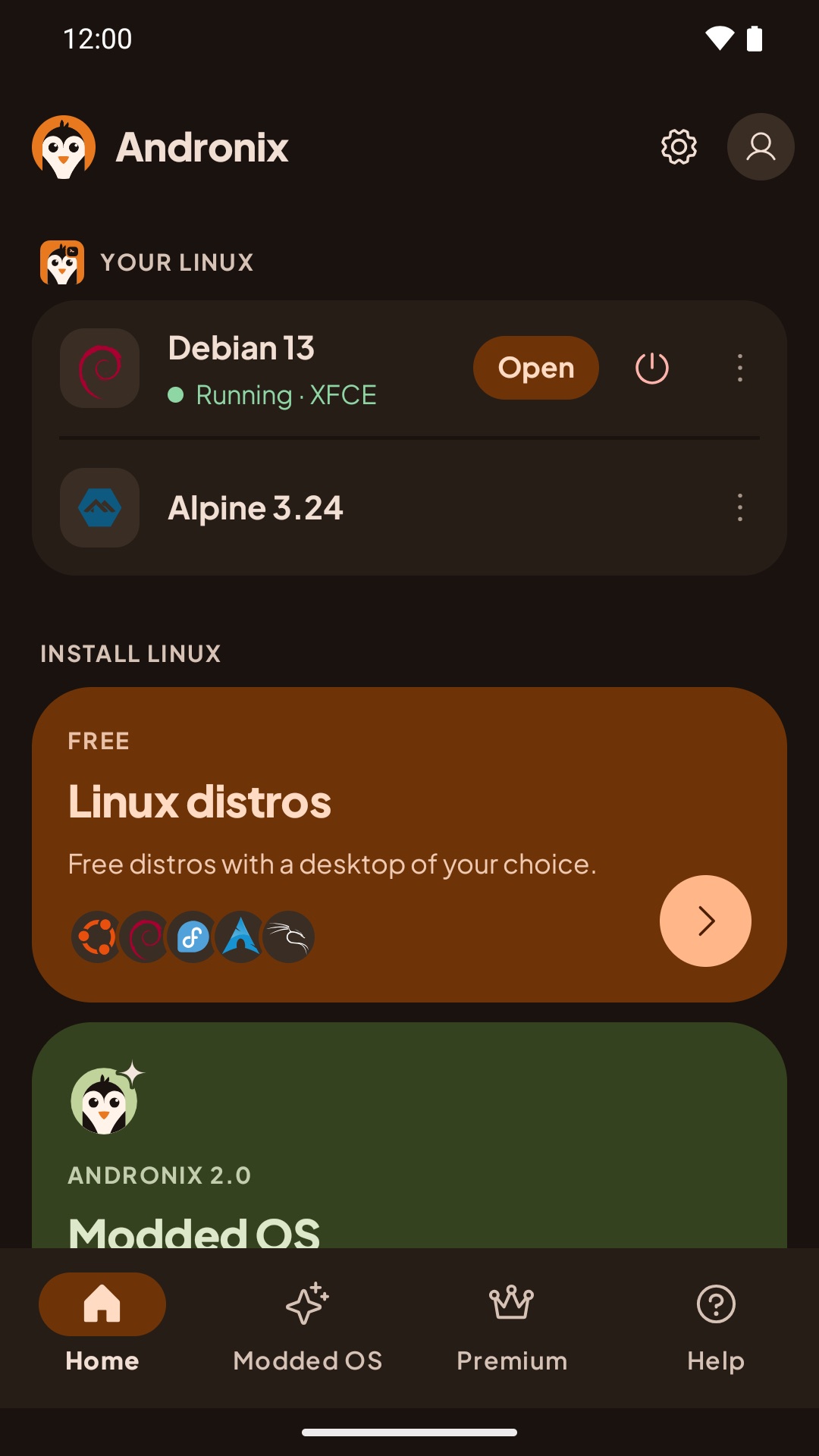
- Leave the desktop: press Back. Linux keeps running in the background with the notification; open it again from Home or the notification.
- Stop it: tap Stop (on the toolbar, on Home or in the notification). Apps on the desktop close and anything unsaved is lost.
- One at a time: one distro runs at a time. Opening another one asks you to stop the running one first.
- Terminal: the terminal button opens Andronix's own terminal for that distro. Command-line installs (without a desktop) open there.
If the install fails
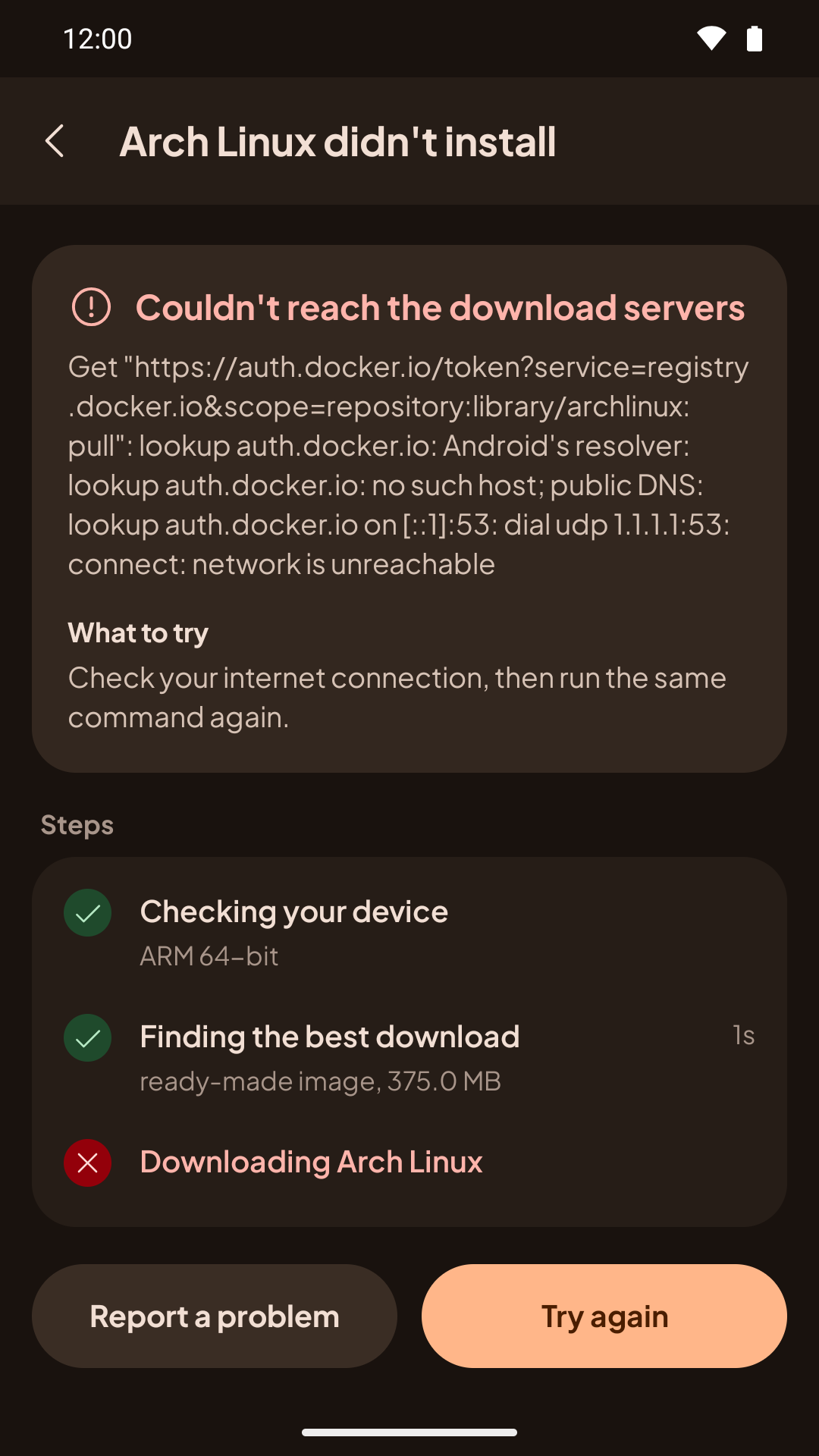
The app says what went wrong and what to try, for example Not enough space or No connection, with Try again and Report a problem. If you're not in the app, a notification says the install didn't finish, with Try again and Send report. See Linux in the app: limits and problems.
Add a desktop later
Installed a distro with Command line only? On Home, under Your Linux, tap ⋮ next to it, then Add a desktop, and pick XFCE, LXQt, MATE or KDE Plasma. Your files and apps stay; the distro stops while the desktop is added. Modded OS editions already have their desktop.