


Linux Apps on Your Home Screen
Pin a Linux app to Android's home screen so it opens with one tap, and what happens to shortcuts when you remove a distro.
Add an app
- On Home, under Your Linux, tap ⋮ next to your distro, then Add an app to the home screen.
- Pick the app. The list shows the distro's apps with their icons, with search at the top; the distro's settings dialogs are grouped under Desktop settings. Terminal opens Andronix's own terminal instead of the desktop.
- Android asks where to put it. Confirm, and the app's icon appears on your home screen.
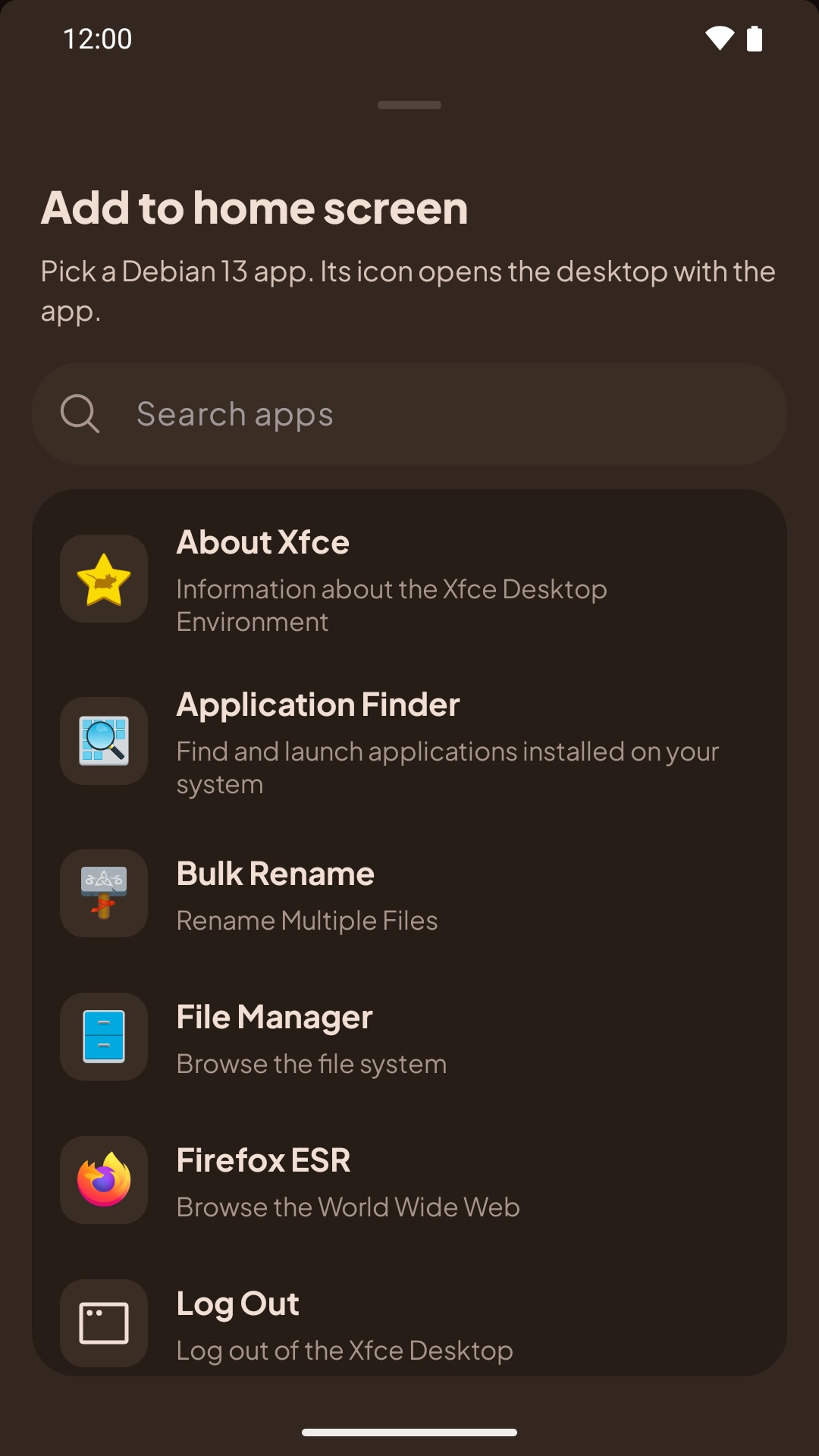
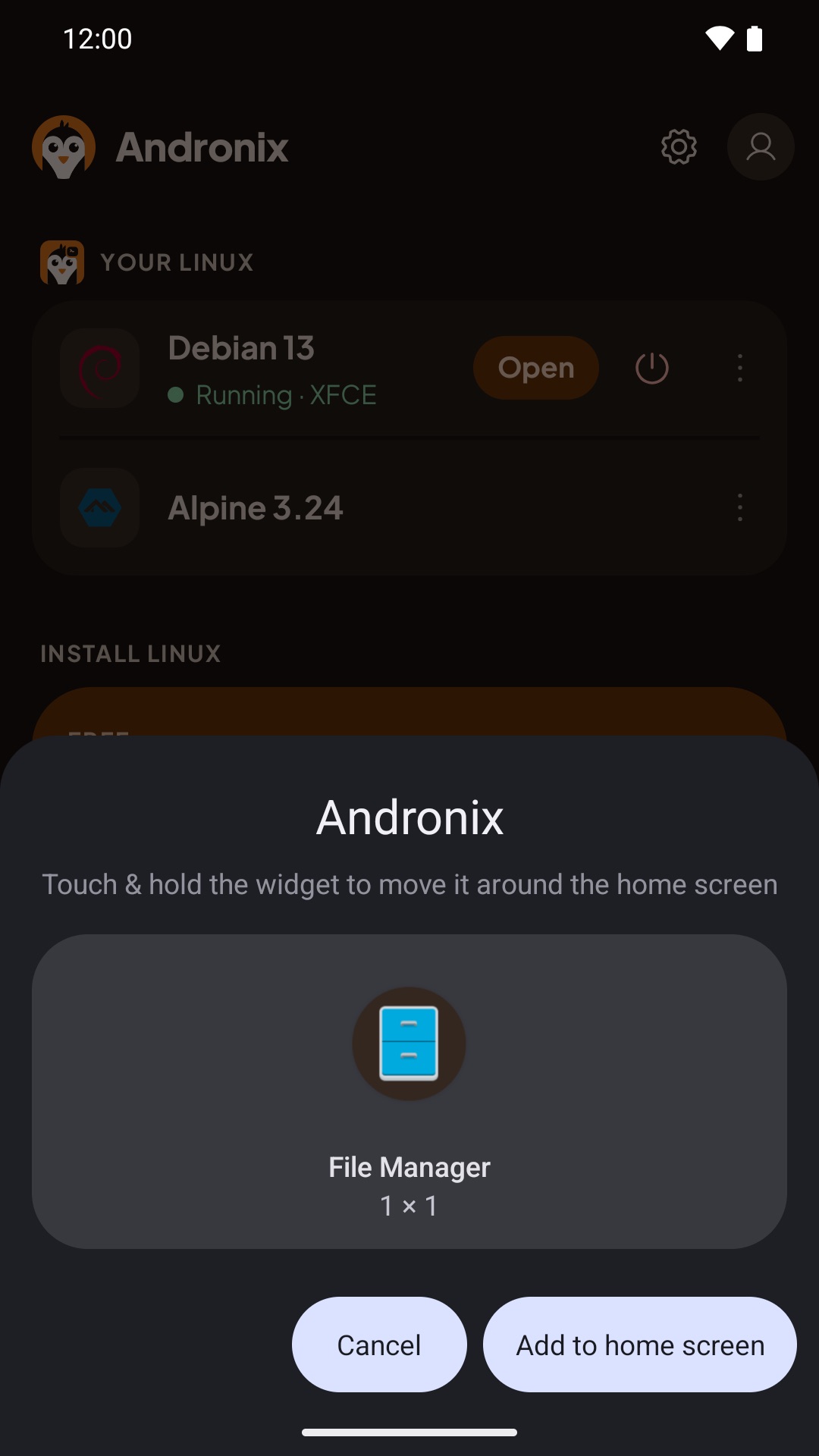
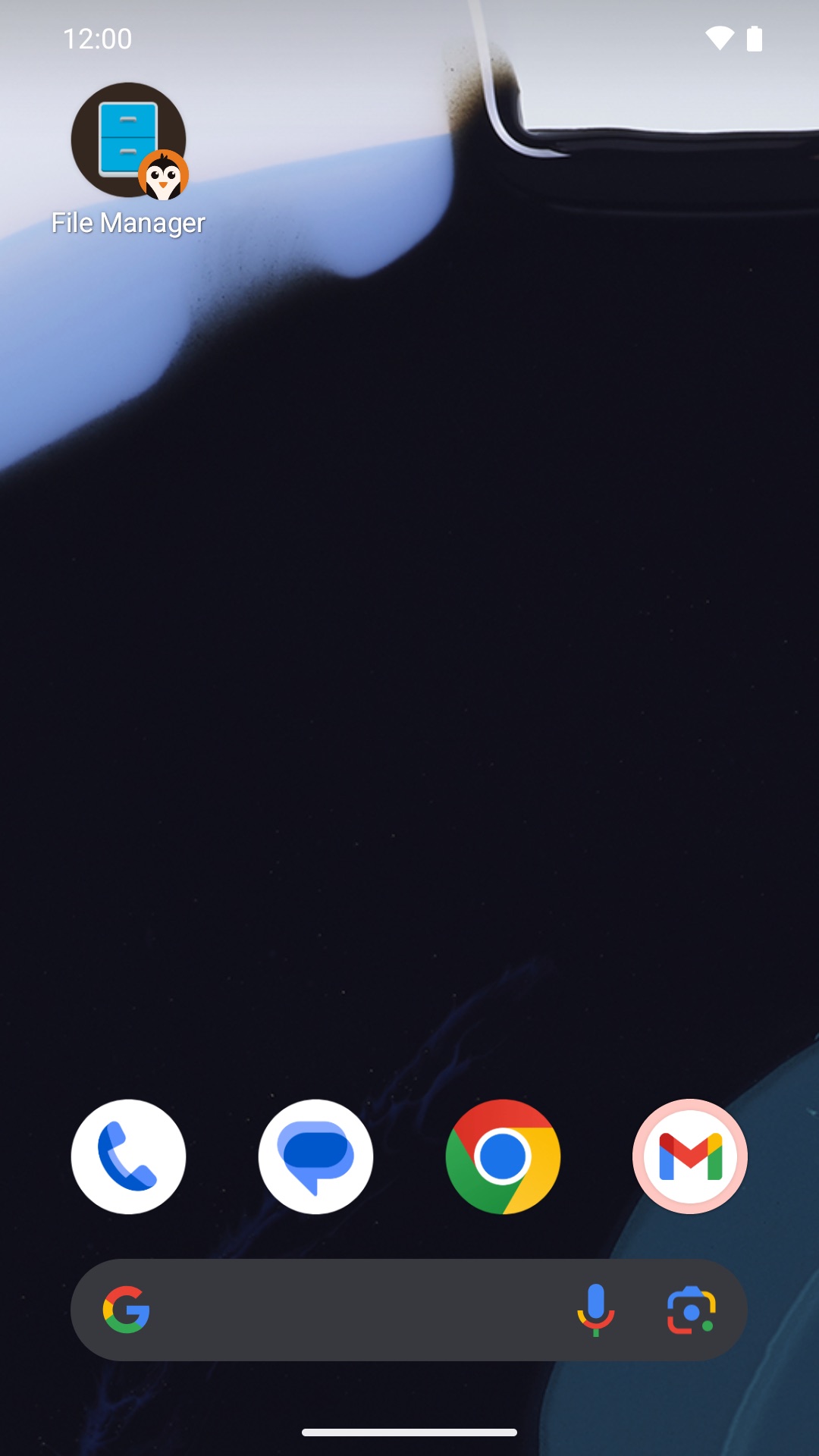
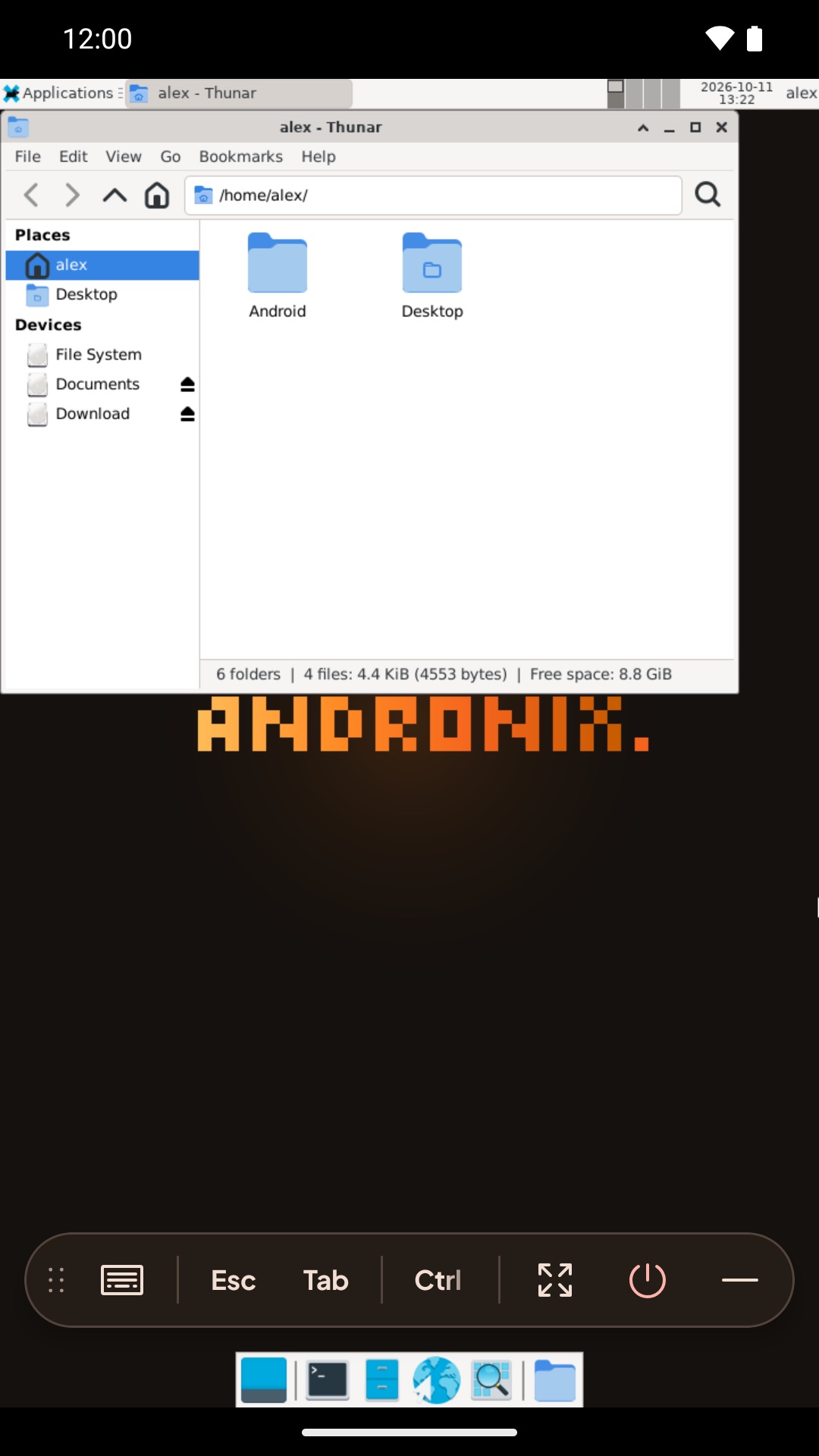
Tapping the icon starts the distro's desktop if it isn't running, opens the desktop and starts the app. If another distro is running, the app asks to stop it first.
If your home screen can't add icons from apps, Andronix adds the shortcut to its own icon instead: touch and hold the Andronix icon to open it from there.
When you remove a distro
Android doesn't let apps remove icons from your home screen, so the shortcuts stay but stop working: tapping one says "This Linux was removed from Andronix." If you install the same distro again, they work again. To get rid of one, drag it off your home screen.
To remove a distro: on Home, tap ⋮ next to it, then Remove. The distro and everything inside it are deleted from this device.
Android Files in Linux
Share files between Android and Linux in the Andronix app - the shared folders, Import, Send to Linux, and your Linux home in the Files app.
GPU Acceleration
GPU acceleration for Linux in the Andronix app - what it does, the full-screen zero-copy path, the devices it's been tested on, how to check it's on, how to turn it off, and what to report.