


Black Screen and Safe Mode
How the Andronix app notices a desktop that stays black and fixes it by itself, step by step, and how to use safe mode.
Some graphics drivers can leave the desktop black. Andronix checks every desktop 45 seconds after it first draws. If the screen is still one flat colour with nothing on it, Andronix fixes it by itself, one step per start, and tells you what it did:
- GPU acceleration off: if GPU acceleration was on, it restarts the desktop without it.
- Safe mode: it restarts the desktop in safe mode.
- VNC: if it's still black in safe mode, it shows the desktop through VNC, another way of drawing it.
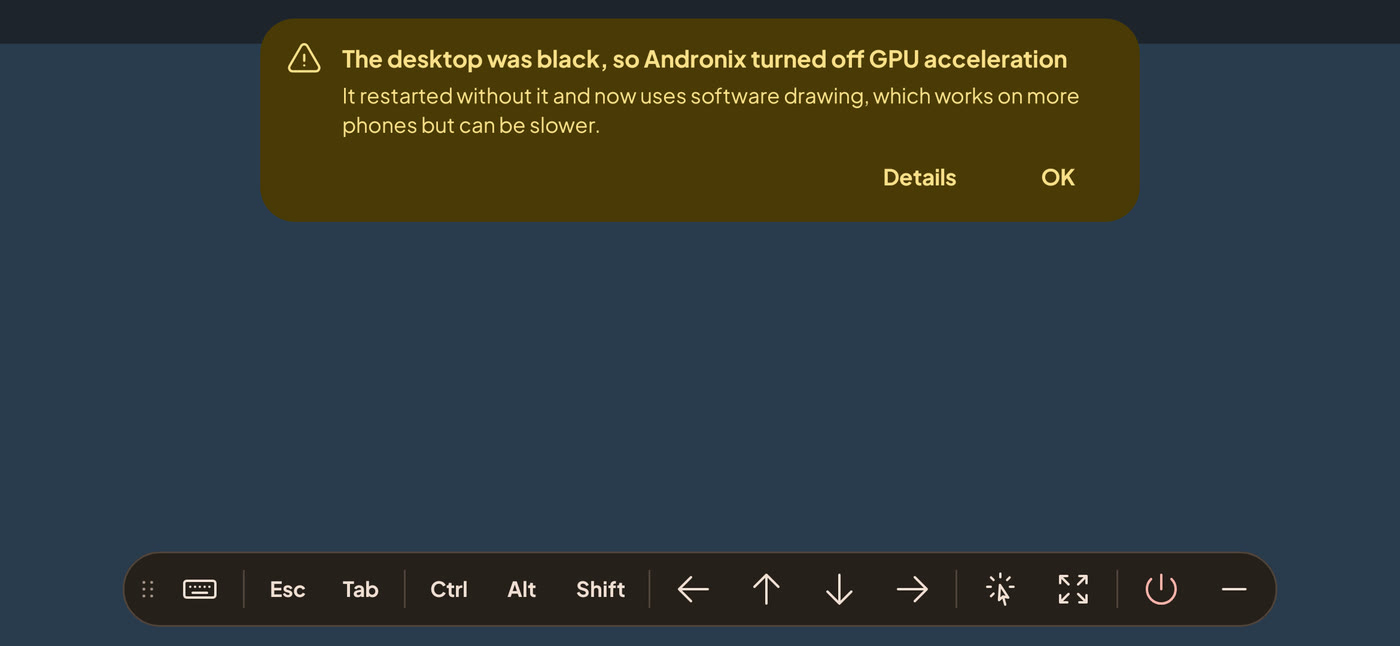
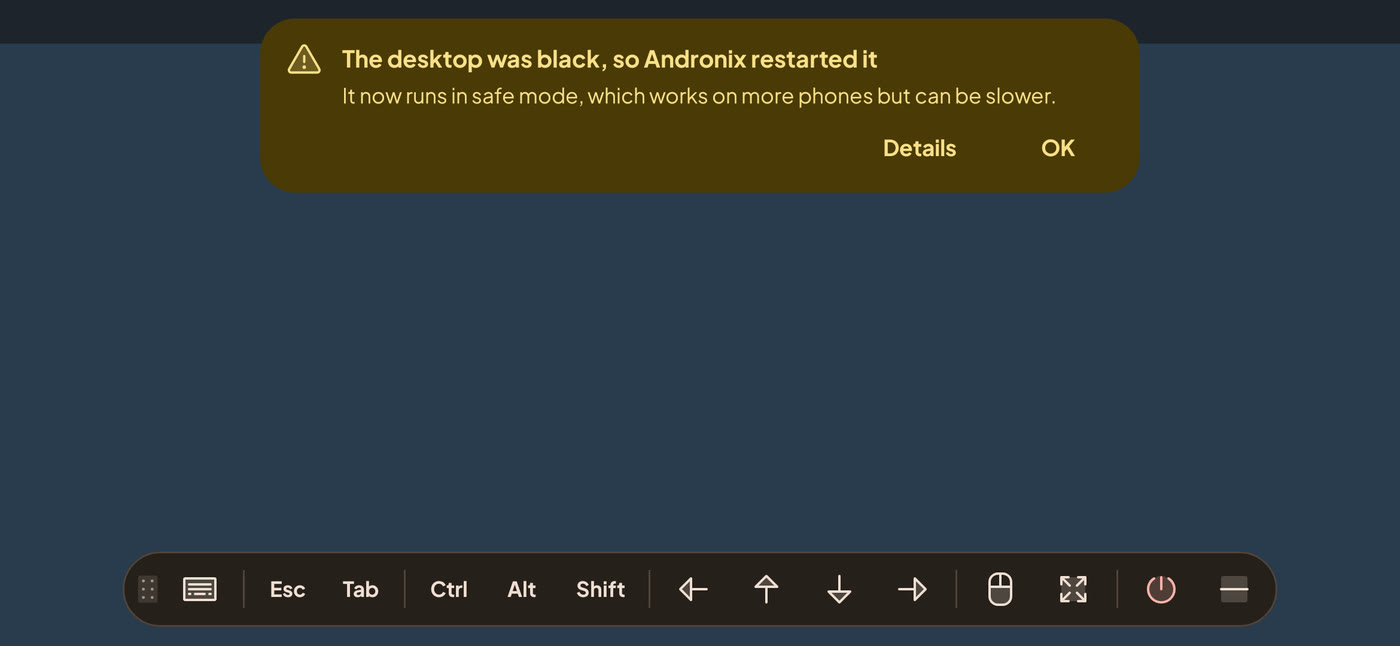
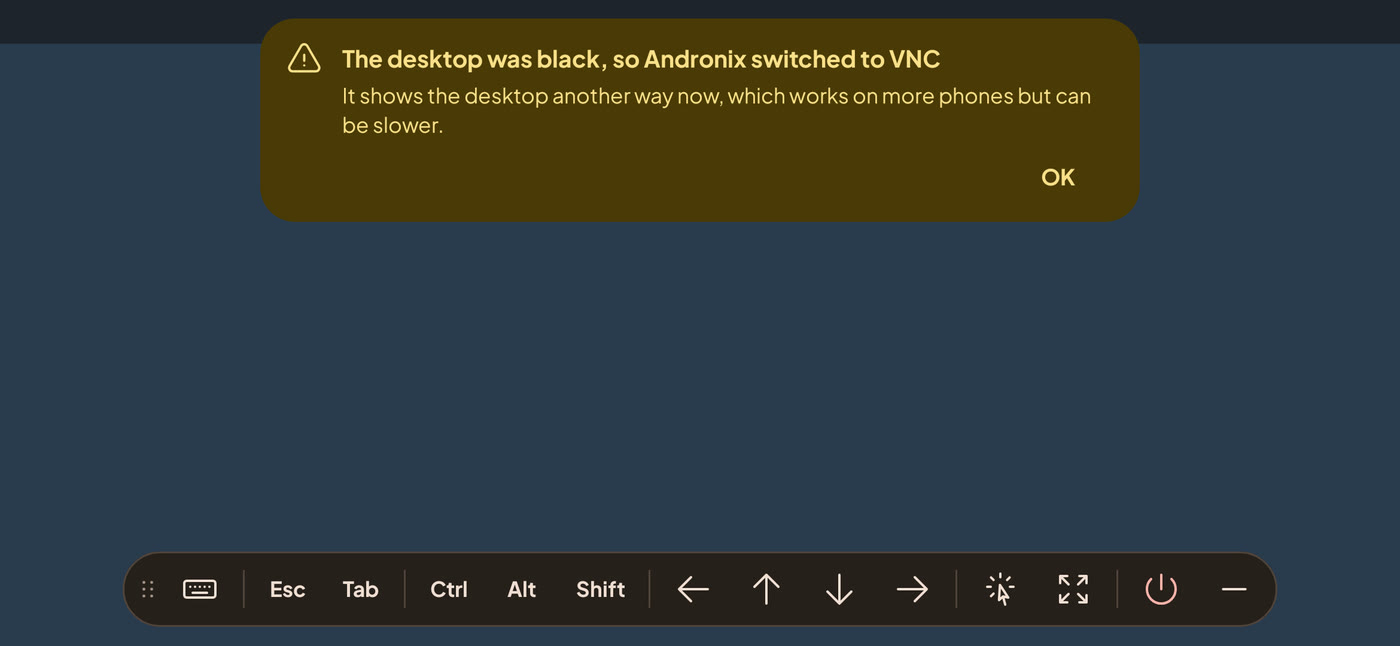
The loading screen stays up during the restart, and a banner at the top says what happened. Tap Details to see more, or OK to close it.
Safe mode
Safe mode changes what made the desktop black on other devices. Details lists what it changed for you, from:
- Drawing in software, not on the graphics chip
- Lighter settings (desktop effects off)
- No window manager (windows without title bars)
- A fresh desktop session (windows from last time aren't reopened)
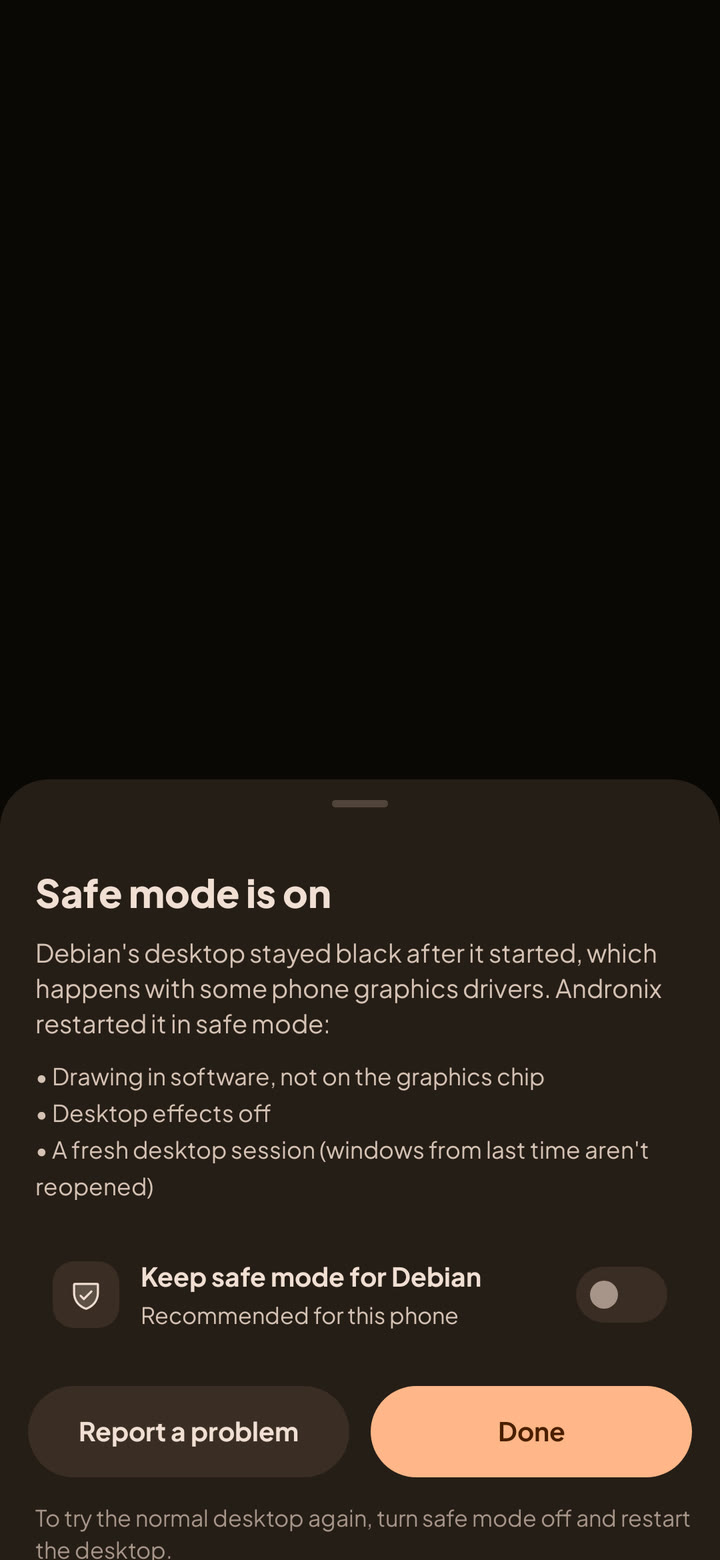

Safe mode is remembered for that distro. Keep safe mode for <distro> is on and marked "Recommended for this device".
- To try the normal desktop again: on Home, tap ⋮ next to the distro, then Turn off safe mode. It applies at the next start.
- To start in safe mode yourself: ⋮ › Start in safe mode restarts the desktop in safe mode right away.
Still black?
- On devices with a Linux kernel older than 4.8, desktops may stay black. See The installer warns about an old kernel.
- Tap Report a problem on the Details sheet. It opens the report form in the app, with the category Desktop, Termux:X11 or sound and the step that failed filled in. See Troubleshooting and reporting.
Linux in the App: Limits and Problems
Known limits of Linux in the app, fixes for common problems, and how to report a problem with the logs attached.
Process Completed (Signal 9)
Seeing [Process completed (signal 9) - press Enter] in Termux, or Android stopped in the Andronix app? Turn off Android's child process limit: one setting in Developer options on Android 14 and newer, a few ADB commands on 12 and 13.