


Uninstall a Distro in Termux
Remove a distro installed in Termux, with the Andronix app's uninstall command or andronix remove.
This page is for Andronix with Termux, on phones that can't run Linux in the app (Android 7, or no 64-bit ARM processor), or if you use the command-line installer. For Linux in the app, see Uninstall a distro.
Learn how to uninstall a Linux distro you installed with Andronix. The app generates the uninstall command for you, so all you need to do is run it in Termux. You can also remove a distro yourself with one command; see Uninstalling from Termux.
/sdcard first, or make a backup with andronix backup.1. Preparation 🚀
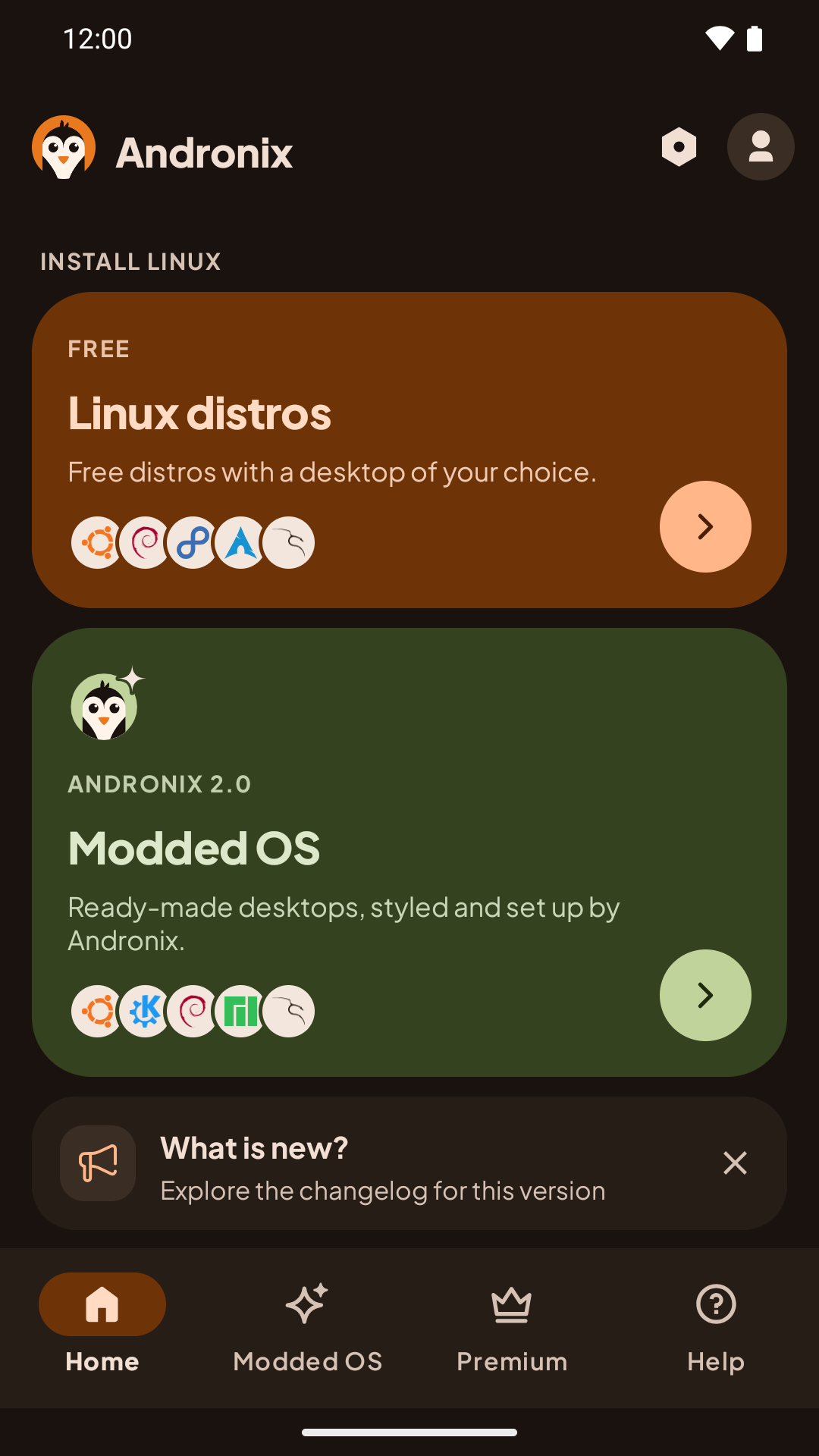
Open Andronix app
Open the Andronix app and tap the Linux distros card on Home.
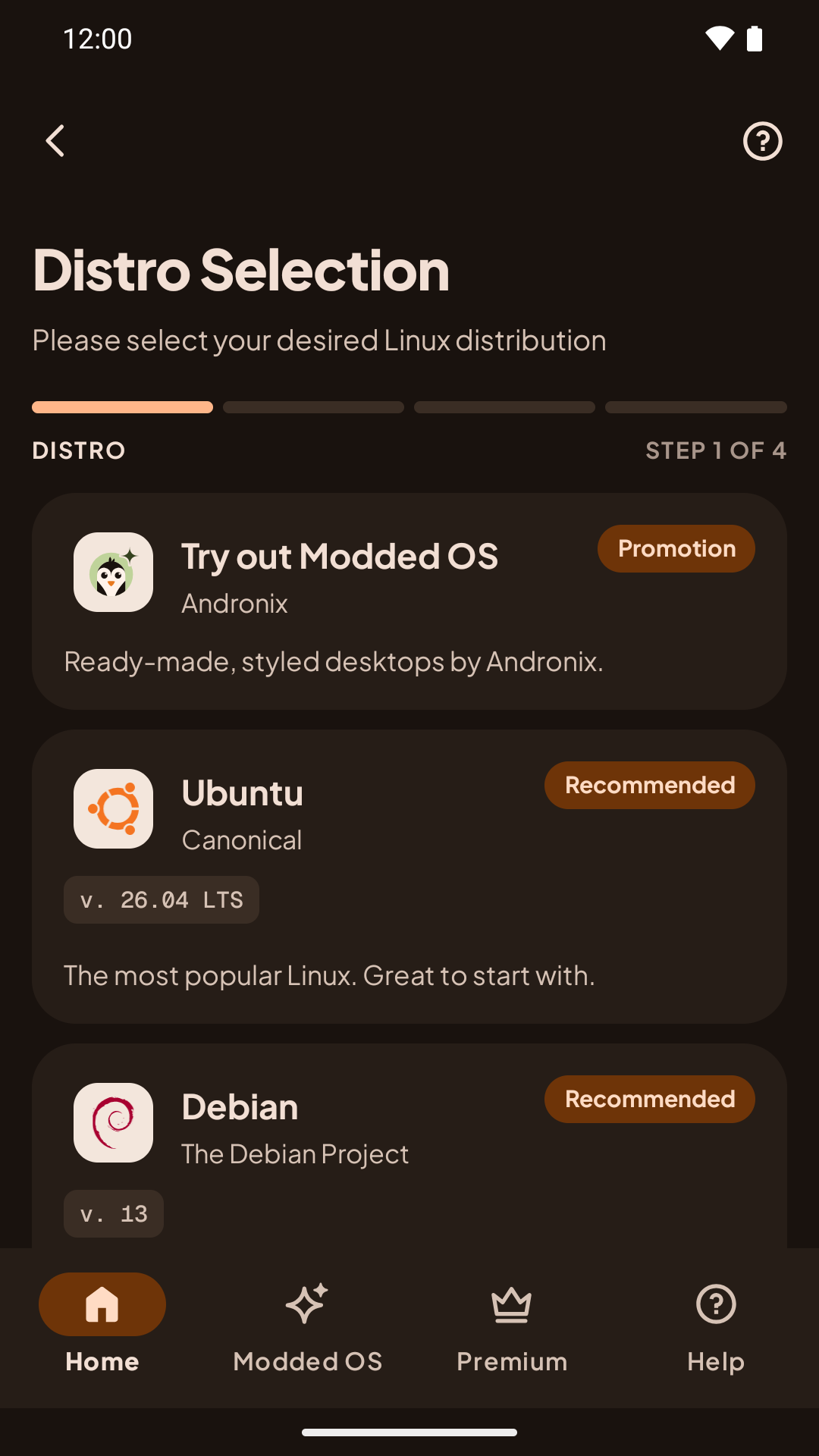
Select Distribution
You'll now see all the distributions available in Andronix.
2. Selection ⭐
Long Press on Distribution
Long press the distro you want to uninstall. This opens a menu with options for that distro.
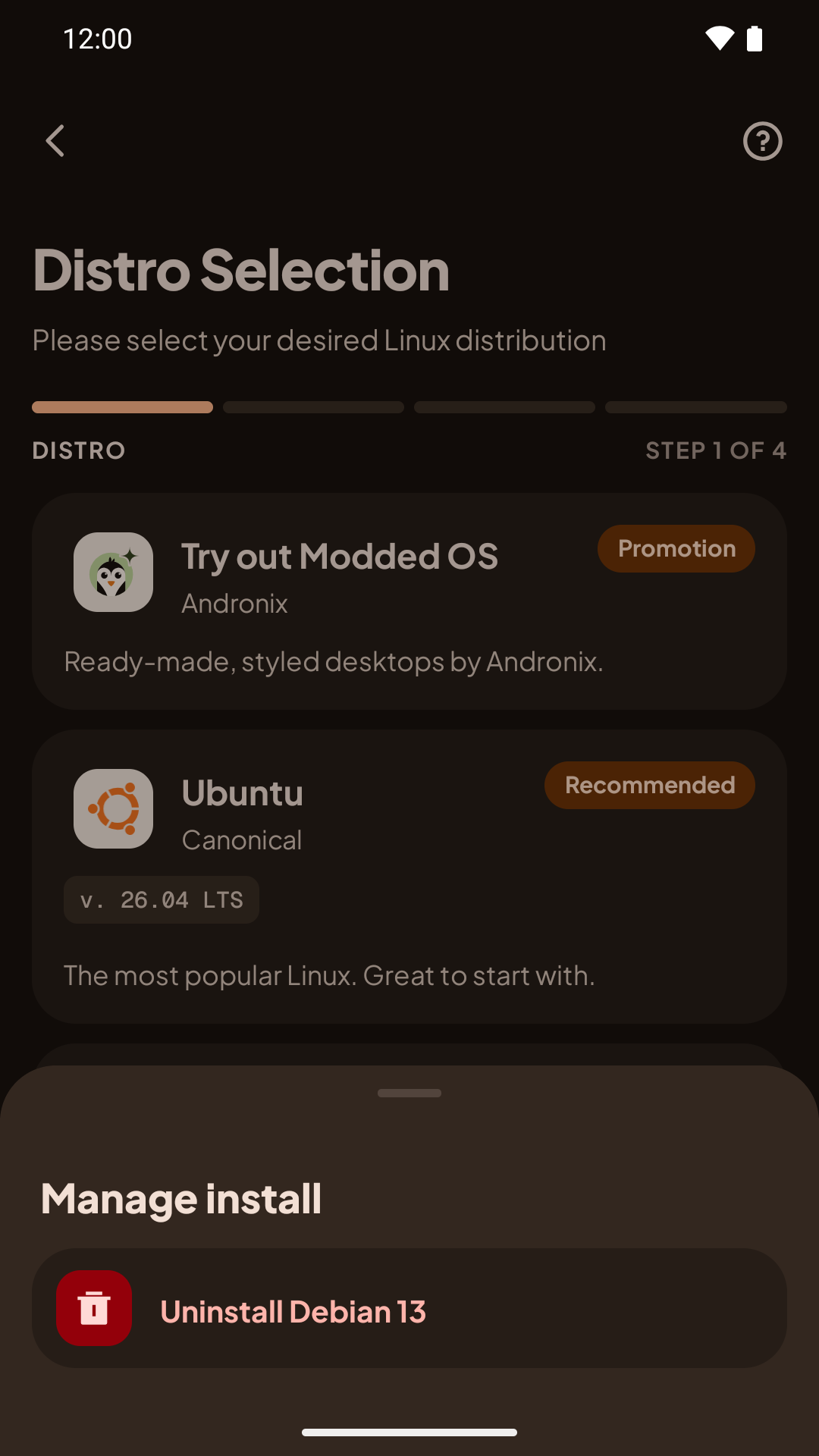
Select Uninstall
Tap the Uninstall button to start the process.
3. Termux Execution 💻
This is where your Linux distribution actually gets removed.
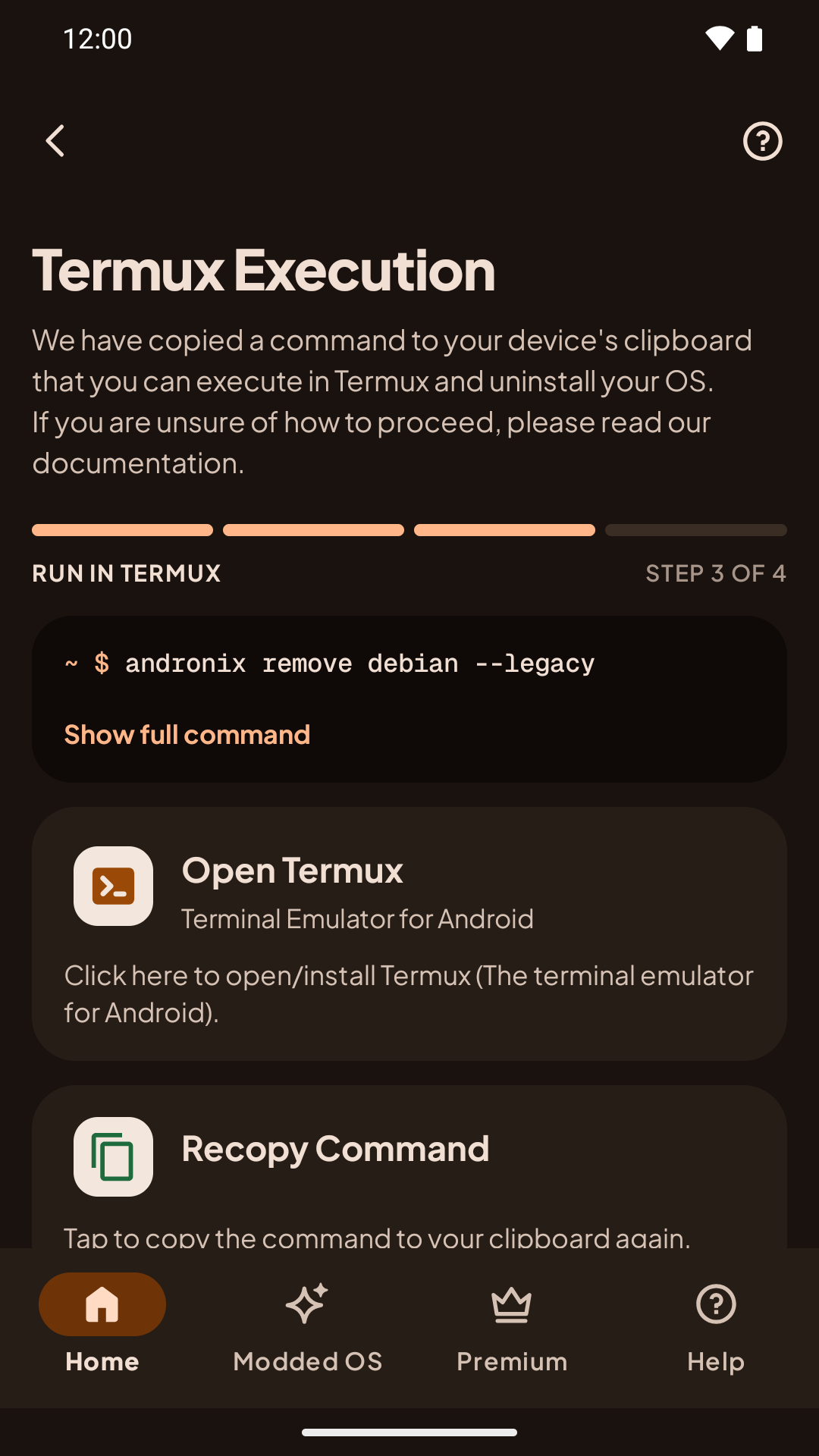
Termux
You'll run this command in Termux to remove the distro.
Paste and Execute
First, stop the desktop (vncserver-stop) and exit the distro if it's running. Then tap Copy and open Termux: the app copies the command again and opens Termux. In Termux, long-press, tap Paste, then press Enter.
All done!
That's it! You've successfully uninstalled the Linux distribution from your Android device.
Uninstalling from Termux
If you installed the distro with Andronix 2.0, you can remove it without the app. Stop the desktop and exit the distro, then run this in Termux:
andronix remove debianReplace debian with the name of your distro (ubuntu, ubuntu24, kali, fedora, arch, manjaro, alpine or void). Run andronix list if you're not sure what's installed.
The command shows what it will delete and asks you to confirm. It removes the distro and its start script. Your files in /sdcard are not touched.
--legacy also removes a copy of the same distro left by the pre-2.0 installer (for example ~/debian-fs), as in andronix remove debian --legacy. The uninstall command the app copies includes --legacy, so uninstalling from the app removes both. See Installs from before Andronix 2.0.Removing a Modded OS? Use its edition id instead of the distro name. See Remove a Modded OS.
Next steps
- Installing a Distro: install a different distro.
- The andronix command: back up, restore and manage distros from Termux.
- Modded OS: try a pre-configured distro with a ready-to-use desktop.
- FAQ: answers to common questions and errors.
Back Up and Restore in Termux
Save a whole distro installed in Termux to one file and restore it, with andronix backup and andronix restore.
Modded OS in Termux
Install, start and remove a Modded OS edition with Termux - the app copies the install command with its download token, andronix desktop opens it, andronix remove removes it.